Anúncios
In an age where every millisecond counts and every watt of power could mean a smoother experience, optimizing your power profile in Windows 11 (or Windows 10) is a critical step for professionals, gamers, creators and productivity-seekers alike. With over twenty years writing about technology, I’ve seen how correctly configuring power settings can unlock hidden performance gains, reduce unwanted throttling, and extend the life of your machine. This post on adcod.com will walk you through how to configure your power profile for optimal performance—step by step—so you can get the most from your PC.
Why Power Profile Matters

A so-called power profile (or power plan) is the set of instructions your Windows operating system uses to manage CPU states, display power, sleep behaviour, and other hardware-control features. By default, Windows uses a “Balanced” plan to favour energy savings and quieter operation. But when you want maximum performance, that default often holds you back in subtle ways:
Anúncios
-
The CPU may stay in lower frequency states for longer, responding slower.
-
When throttling or thermal limits engage, you may lose performance headroom even though the system is capable of more.
-
Background tasks may be deferred or delayed to save power, which can hurt responsiveness.
-
Battery-powered machines may suffer more aggressive power management, reducing clock speeds and GPU performance.
If you reconfigure your power profile to prioritise performance, you allow the system to take full advantage of hardware capabilities: higher CPU/GPU clocks, faster ramp-up, smoother workloads, and fewer interruptions. For creators, gamers, and power users, that performance boost can be a real difference.
Step-by-Step: Configure Windows Power Profile for Better Performance
Below is a structured workflow so you can safely adjust your power profile and see real gains. Remember to back up your settings and ensure any critical work is saved before changing system settings.
Anúncios
Step 1: Access the Power Options
-
Open the Start menu and search for Control Panel.
-
In Control Panel, go to Hardware and Sound > Power Options.
-
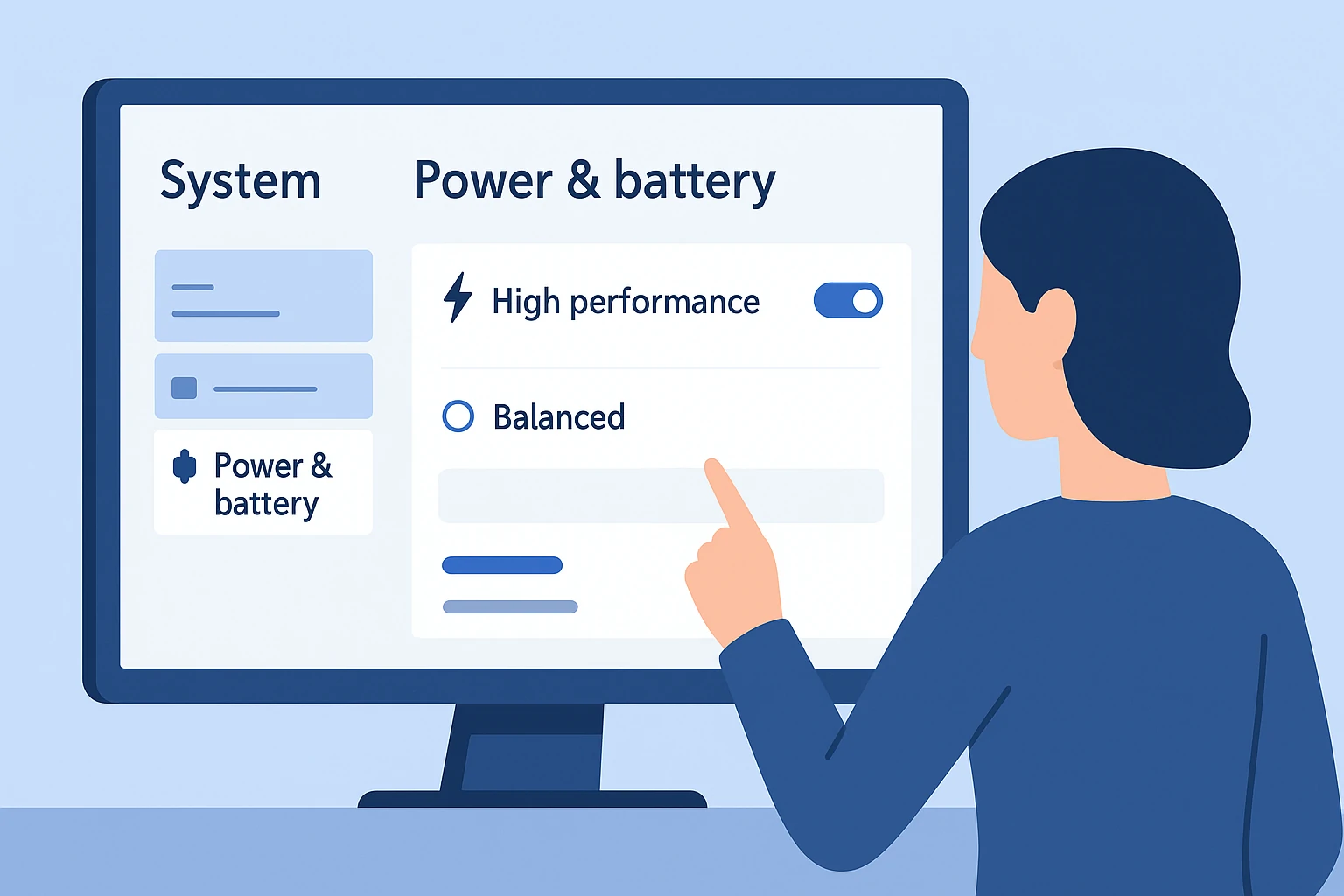
On Windows 11 you may go to Settings > System > Power & Battery > Advanced Settings (or similar path depending on version).
Step 2: Choose or Create a High-Performance Plan
-
In the Power Options dialog, you’ll see default plans such as Balanced or Power saver.
-
If you see a High performance or Ultimate performance plan, select it.
-
On Windows 10/11 Pro or higher, you may unlock the Ultimate performance plan by opening a Command Prompt with admin rights and entering:
(The GUID will differ by version).
-
-
If the plan doesn’t exist, you can create a new plan: click Create a power plan, choose High performance, give it a name like “Performance Profile” and save it.
Step 3: Adjust Basic Settings
-
Once the new plan is active, click Change plan settings next to it.
-
For “Turn off the display” and “Put the computer to sleep”, set longer delays (or Never if you are plugged in and using it for performance tasks).
-
Click Change advanced power settings.
Step 4: Tweak Advanced Power Settings
In the Advanced Power Settings dialog you’ll find many parameters you can customise. The ones you should focus on for performance are:
-
Processor power management → Minimum processor state: set this to 100% when plugged in (ensures CPU stays at full readiness).
-
Processor power management → Maximum processor state: keep this at 100% (so CPU isn’t capped).
-
Hard disk → Turn off hard disk after: set to a high value or Never when performance is priority.
-
USB settings → USB selective suspend setting: disable (prevents USB devices from going to sleep).
-
PCI Express → Link State Power Management: set to Off or Maximum performance.
-
Display → Turn off after: set to longer delay when plugged in; when gaming or working, you might disable entirely.
-
Sleep → Sleep after: set to Never when performing long jobs or when plugged in.
-
Graphics Settings (if available) → On some laptops, you may see a “Graphics Power Plan” or similar: choose high performance for plugged-in mode.
After adjusting, click Apply and OK, then Save changes to the plan.
Step 5: Verify Your Plan and Monitor Results
-
Ensure your created plan is selected.
-
It’s wise to reboot or at least log out/in so the settings take effect.
-
Use a tool like Task Manager, HWMonitor or MSI Afterburner to monitor clock speeds, temperatures and utilisation. You should see higher sustained clocks, less throttling and more responsiveness.
Additional Tips for Best Performance
-
Make sure your machine is plugged into a high-performance power outlet rather than relying on battery mode. Most laptops automatically impose stricter power limits on battery.
-
Keep your device drivers and firmware (BIOS/UEFI) updated. Power plans only work optimally when substrate drivers (especially chipset and power management) are up to date.
-
For gaming or heavy workloads, disable background apps and ensure your tasks are not being interrupted by maintenance processes.
-
Monitor thermals: higher performance often means more heat. Ensure airflow is good and dust is cleared from vents. If the system overheats it will throttle performance, negating gains.
-
On notebooks, ensure you are in a “Plugged in” mode that allows full power usage. Many laptops have “Balanced” factory profiles that throttle when unplugged. Switching to your high-performance plan while plugged in ensures you get true full power.
-
If you are a creator or gamer who wants the maximum possible performance, consider the Ultimate Performance plan (Windows Pro builds) but be aware it may increase power draw and fan noise.
Also read: What is good CPU performance?
Example Scenario: Gaming on Windows 11
Imagine you are playing a demanding game or streaming while working. With the default Balanced plan, your CPU might dip to low states when idle, then ramp up slowly when stressed. With a high-performance profile:
-
Minimum processor state at 100% means the CPU stays fully ready and spikes are handled smoothly.
-
Graphics and PCI-Express link states are at maximum performance meaning less latency between GPU and system.
-
USB suspend is disabled, so game controllers, headsets or capture devices do not wake or disconnect constantly.
-
Sleep and display turn-off are disabled so the system stays fully active until you manually decide to pause or stop.
In testing, users report fewer stutters, smoother framerates and quicker transitions when switching tasks or scenes. One YouTube walkthrough shows this clearly.
Also read: How to Accelerate the Boot of Windows 10/11
When to Revert to Balanced or Power Saver
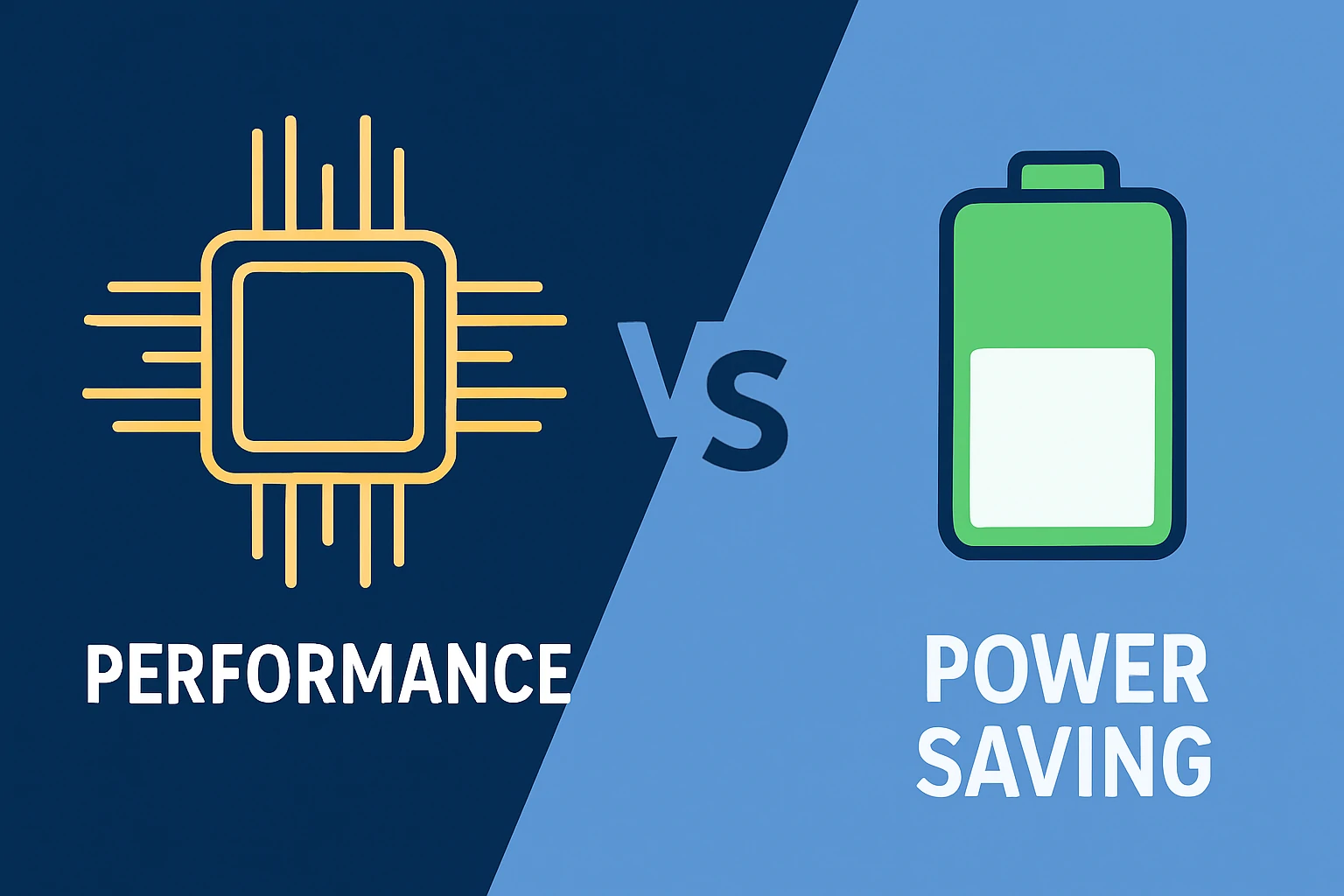
Performance profiles are excellent when plugged in and when you care about responsiveness. But if you are running on battery or need quiet/low thermal operation, return to the Balanced or Power saver plan. That helps extend battery life and keep acoustics comfortable. Also, if you notice overheating or fan noise becoming excessive, it might be wise to revert or fine-tune settings.
Final Thoughts
Optimising your power profile in Windows is a smart and relatively simple step to ensure your PC is running at its best when it matters. Whether you are gaming, editing video, streaming or simply trying to get work done efficiently, setting up a high-performance plan gives you ready access to full hardware capabilities. The key is to balance performance with system health—monitor thermals, keep drivers updated and remember to switch to battery-saver modes when unplugged.
On adcod.com we aim to provide authoritative and actionable tech guides you can trust. Use these steps, apply them to your device, and you should experience more responsive behaviour, faster workloads, and fewer performance bottlenecks.
Feel free to ask if you need device-specific instructions (laptop vs desktop) or deeper tweaks (BIOS/firmware, undervolting, custom profiles).
Also read: What is the normal CPU temperature range for healthy performance?