Anúncios
If you have ever felt intimidated by the black window of the terminal, you are not alone. Yet the command-line interface (CLI) on Terminal (macOS) or on any typical Linux distribution is one of the most powerful tools in a technologist’s toolbox. With more than 20 years writing copy for tech audiences, I can tell you: mastering a handful of common commands and workflows will save you hours and elevate your productivity. In this post for AdCod (adcod.com) I will guide you through using the terminal for everyday tasks—navigating the filesystem, managing files and directories, monitoring processes, and automating simple workflows. Follow along, copy the commands into your own terminal, and begin working smarter, not harder.
Why use the terminal?
The terminal may look intimidating at first, but it is one of the most efficient and versatile tools in any operating system. Whether you’re using macOS or Linux, the command line gives you direct access to your system’s core functions, allowing you to perform tasks faster, automate repetitive processes, and troubleshoot issues with precision.
Anúncios

While graphical interfaces are great for everyday users, developers, IT professionals, and power users know that mastering the terminal unlocks a deeper level of control and productivity that simply isn’t possible with clicks alone.
While graphical interfaces are familiar and user-friendly, the terminal offers advantages:
Anúncios
-
Speed – one command can replace multiple clicks.
-
Precision – you control exactly what happens.
-
Automation – you can script repetitive tasks.
-
Portability – the same commands apply on macOS and Linux (often with minimal changes).
By embracing the CLI you become more efficient. So let’s dive in.
Also read: Best SSH Client Software Tools for Windows, Mac, and Linux
Opening the terminal and getting oriented
Before you can start mastering commands, you first need to know how to open the terminal and understand its basic layout. The terminal acts as your direct gateway to the operating system, allowing you to communicate with it through text-based commands instead of graphical menus.

Once opened, you’ll see a command prompt, the place where you’ll type instructions that the system will immediately execute. Getting familiar with this environment is the first step toward becoming confident in navigating, managing files, and running processes efficiently on macOS or Linux.
On macOS you open Terminal via Applications → Utilities → Terminal, or use Spotlight (Cmd + Space then type “Terminal”). On Linux you may press Ctrl + Alt + T or select your “Terminal” application from the menu.
Here are two excellent tutorials:
-
Linux and macOS Command Line Basics (Engineer Man) YouTube
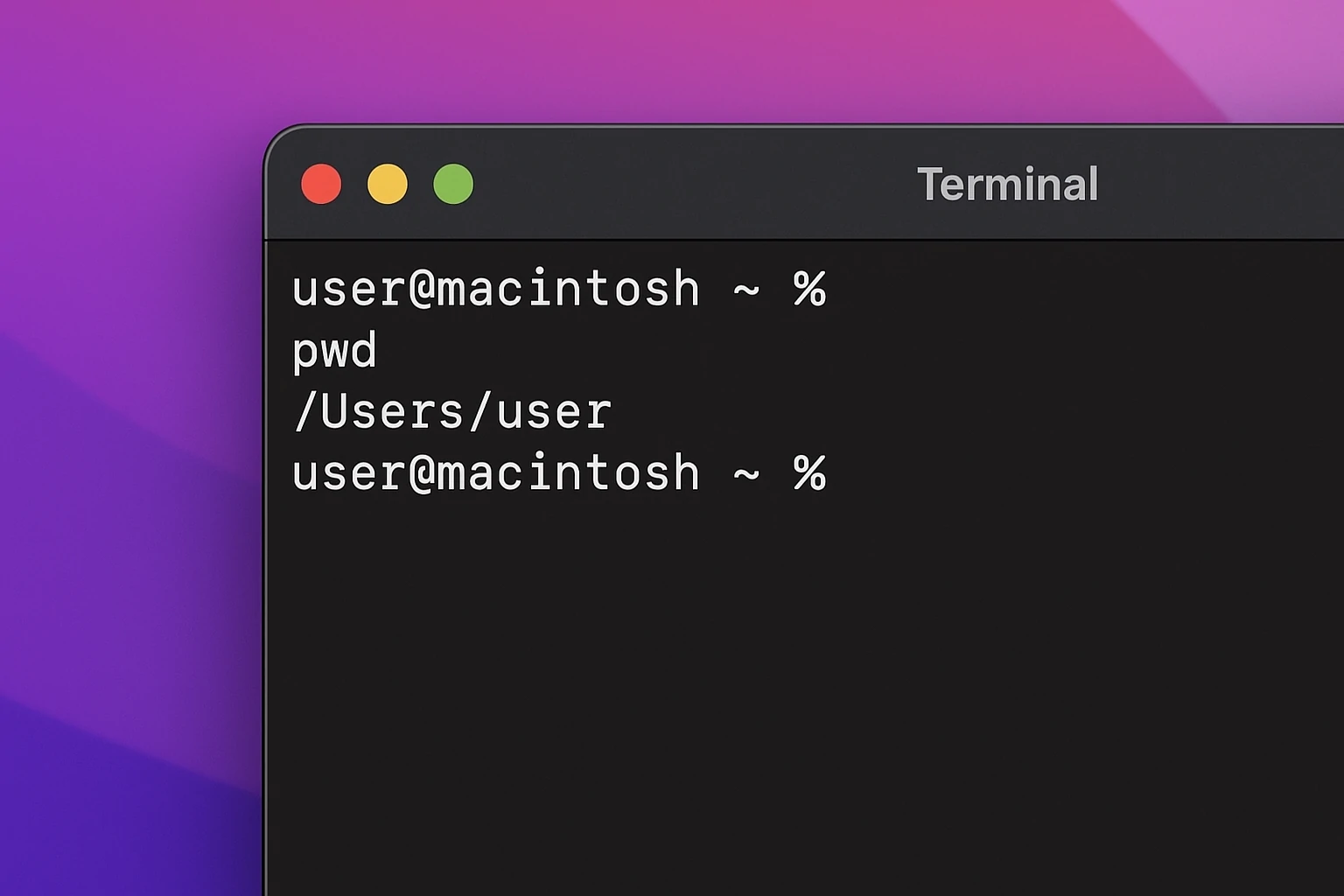
Once open, you will see a prompt: something like username@computername ~ % or similar. The ~ indicates your “home” directory. The shell (often bash or zsh) awaits your instruction. Let’s start with navigation.
Also read: What command is used to terminate a process?
Navigating the filesystem
One of the first skills to learn in the terminal is how to move through your computer’s filesystem. Understanding how to navigate directories lets you access files, organize data, and execute commands in the right locations, all without touching your mouse. It’s the foundation for nearly every task you’ll perform in the command line.
Print working directory
This shows your current directory.
Change directory
Moves you into the Documents folder.
Moves you up one level.
Returns you to your home directory.
List contents
Lists files and directories. Add -l for details (ls -l), or -a to include hidden files (ls -la).
Why this matters
Rapidly moving around your filesystem from the keyboard speeds up tasks like editing files, moving directories, or invoking scripts.
Managing files and directories
Once you know how to navigate the filesystem, the next essential step is learning how to manage files and directories. From creating and renaming to copying, moving, and deleting, these basic operations form the backbone of everyday command-line use. Mastering them allows you to organize your workspace quickly and efficiently.
Create a directory
Create an empty file (macOS/Linux)
Copy, move and remove
Be careful with rm because it deletes immediately (no trash). To remove a directory and its contents:
View a file’s contents
For large files, use less file.txt so you can scroll.
Editing files
You can launch a terminal editor like nano or vim:
Automating simple workflows via chaining
You can combine commands with && so that one runs after another:
This creates a “backup” directory and then copies the file into it.
Monitoring processes and system status
View running processes
Or install and use top / htop for real-time process monitoring.
Find a process
Kill a process
Where PID is the Process ID you found earlier. To force kill:
Check disk usage
Shows disk usage in human-readable format.
Check file/directory size
Why these matter
As a technologist you often need to troubleshoot – check for hung processes, heavy disk usage, zombie tasks. Doing this via GUI is slower.
Networking and remote access basics
Ping a host
(Ctrl +C to stop)
SSH into a remote machine
Copy files from local to remote
Or from remote to local accordingly.
Why this matters
If you work in DevOps, sysadmin, or just manage remote servers, knowing CLI networking and remote access commands is essential.
Also read: What are the operating system error?
Useful scripting and automation tips
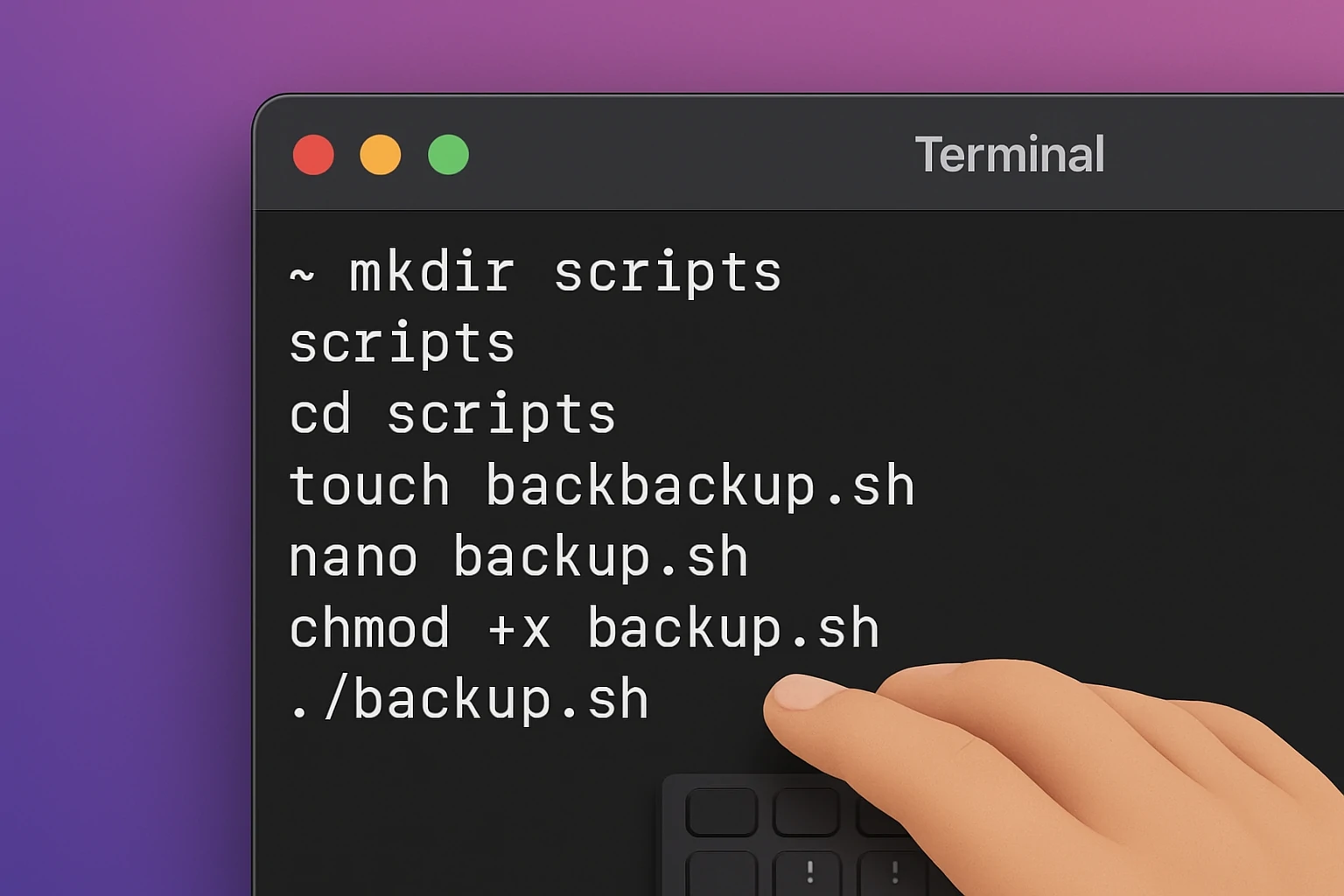
Once you’re comfortable with basic commands, scripting and automation take your terminal skills to the next level. By combining commands or writing small scripts, you can automate repetitive tasks, back up data, or manage files with a single execution. This not only saves time but also ensures consistency and efficiency in your daily workflows.
Using wildcard patterns
Deletes all files ending in .log.
Moves all JPEGs into the “images” folder.
Redirecting output
Saves the output of ls -l into filelist.txt.
Shows lines containing “ERROR” and writes them into errors.txt.
A simple Bash script example
Create a file backup.sh:
Then make it executable:
Run it:
Automate this via cron (Linux) or launchd on macOS to run nightly.
Best practices for terminal use
As you become more confident using the terminal, following best practices helps you work smarter and avoid costly mistakes. Simple habits like using aliases, leveraging keyboard shortcuts, and double-checking commands before execution can greatly improve your efficiency and safety. These practices ensure a smoother and more productive command-line experience.
-
Use tab completion to avoid typos.
-
Use arrow keys to recall previous commands.
-
Use aliases for common commands (in
~/.bashrcor~/.zshrc): -
Keep your working directory tidy.
-
Use version control tools like git inside the terminal.
-
Always double-check when using
rm –r,sudo, or pipelines that delete files.
Summary
In this post we covered how to open the terminal on macOS and Linux, navigate the filesystem, manage files and directories, monitor processes and system metrics, run simple networking commands, and begin scripting for automation. The terminal is not just for experts—it can become your everyday productivity tool. With consistent practice you will find yourself doing tasks faster and with more accuracy.