Anúncios
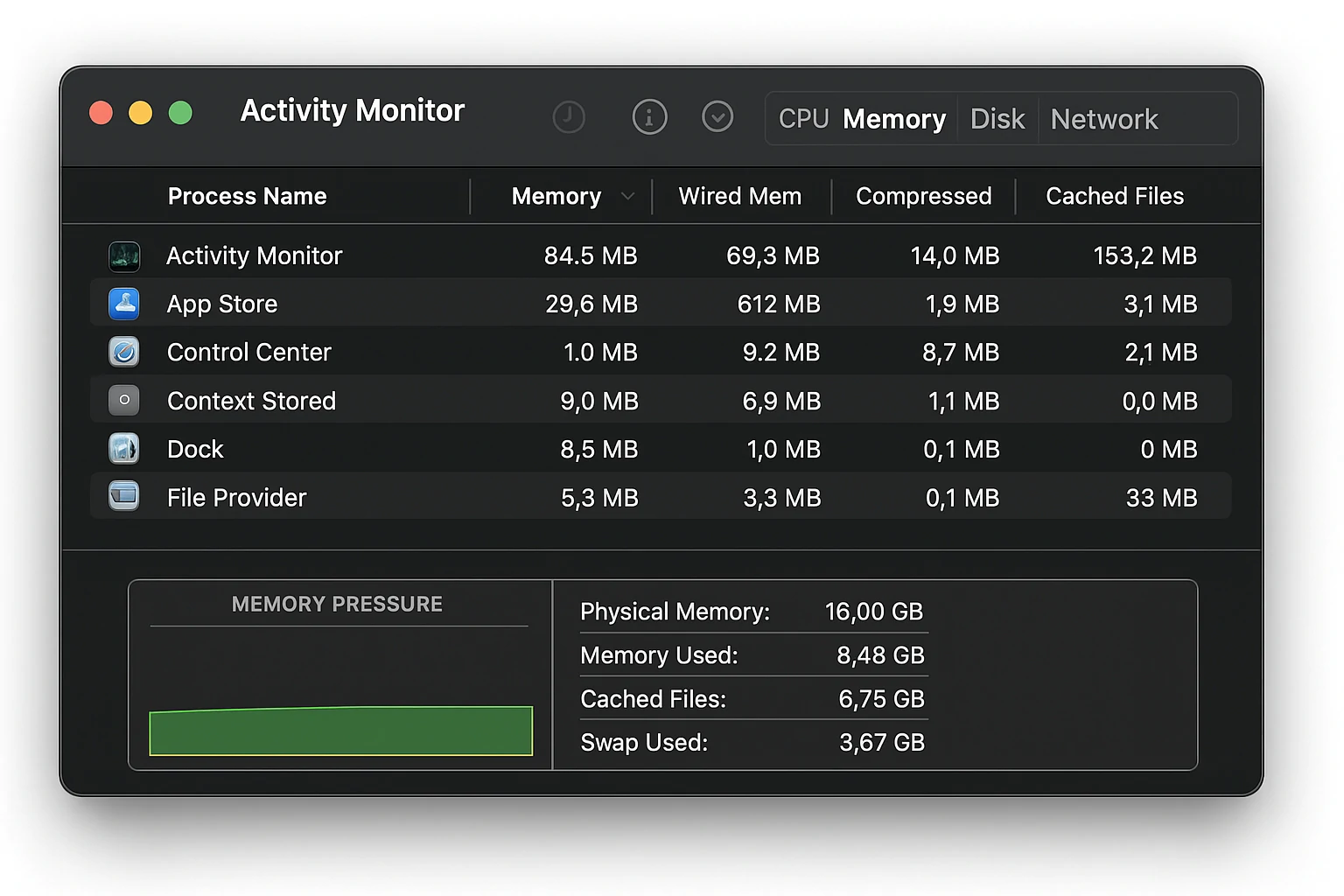
If your Mac seems sluggish, apps freeze, or you keep seeing warnings to force-quit applications, chances are memory (RAM) is under pressure. In this detailed guide, we will explore proven, up-to-date techniques to reduce memory usage on macOS—so your system runs faster, smoother, and more reliably.
Modern versions of macOS, from Monterey to Sonoma, are more efficient than ever, but they also demand more from your hardware. Background processes, system services, and cloud sync features can silently consume RAM even when you’re not running heavy applications. Over time, this buildup leads to sluggish performance, app lag, or the dreaded spinning beach ball. Understanding how to control memory usage not only improves responsiveness but also extends your Mac’s lifespan by reducing unnecessary disk writes caused by excessive swapping.
Anúncios
Table of Contents
-
Understanding Memory Usage in macOS
-
Use Activity Monitor and Interpret Memory Pressure
-
Close or Quit Memory-Hungry Apps
-
Manage Login Items & Startup Agents
-
Clear Caches, Temporary Files & Slim System Cache
-
Reduce Browser Memory Consumption
-
Use macOS Built-in Tools & Terminal Tricks
-
Keep macOS and Apps Updated
-
Consider Hardware (Swap / More RAM)
-
Suggested Internal Links
-
Suggested Videos
-
Suggested Images
Understanding Memory Usage in macOS
This memory management strategy allows macOS to deliver faster app launches and smoother multitasking by preloading frequently used resources. However, the downside is that users often misinterpret high memory usage as a problem, when in reality it’s part of macOS’s intelligent optimization. What truly matters is not how much RAM is in use, but how efficiently it’s being utilized.
Anúncios

When macOS begins to compress memory or rely heavily on swap files, it’s a signal that your system is under strain. By learning how macOS prioritizes and reallocates memory in real time, you can make smarter adjustments—like closing demanding apps or limiting background processes—to maintain optimal performance and stability.
In Activity Monitor → Memory tab, you’ll see key metrics: App Memory, Wired Memory, Compressed Memory, Cached Files, and Swap Used.
The Memory Pressure graph shows whether your system is coping well: green means healthy, yellow or red means stress.
Be aware: high “Memory Used” is not always bad—it may include caches that help performance. The real indicator is memory pressure and swap usage.
Also read: Why Is My Mac Running Slow? 10 Fixes to Speed It Up
Use Activity Monitor and Interpret Memory Pressure
Before taking any action to free up RAM, it’s essential to understand how your Mac is using memory in real time. The built-in Activity Monitor is the most powerful tool for diagnosing memory pressure and spotting problematic apps.
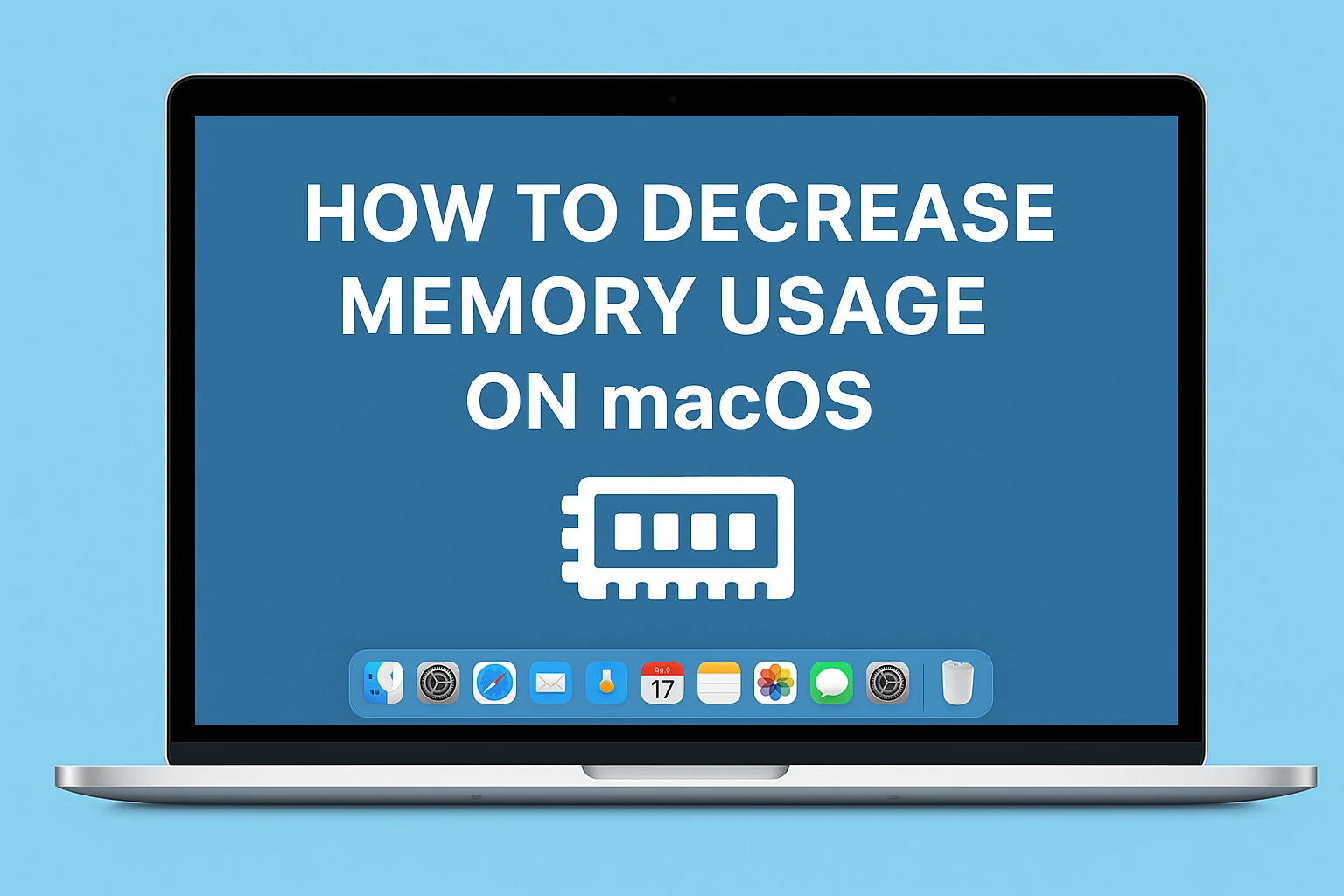
It provides a transparent view of system resources, showing which processes are consuming the most memory and whether your system is reaching its limits. By learning to read the Memory Pressure graph and other key indicators, you can make informed decisions—rather than guessing—about what’s truly affecting your Mac’s performance.
-
Sort processes by Memory column to see which apps consume the most RAM
-
Look at the bottom: Memory Pressure, Swap Used, Compressed
-
If swap usage is high or memory pressure is often yellow/red, you need to act
Also, observe Wired Memory (cannot be paged out) and Compressed Memory.
Use this insight to identify the worst offenders.
Close or Quit Memory-Hungry Apps
Once you’ve identified which applications are consuming excessive memory, the next step is to take control of them. Many users unknowingly keep dozens of background apps open—each one quietly using RAM, CPU, and even GPU resources. Creative software, browsers, and virtual machines are notorious for holding onto memory long after they’re minimized.
Learning to properly close or quit these memory-hungry applications not only frees valuable system resources but also prevents unnecessary swapping and overheating. This simple yet effective practice can instantly boost responsiveness, reduce fan noise, and extend your Mac’s overall performance lifespan.
-
Heavy creative tools: Photoshop, video editors, compilers
-
Virtual machines or emulators
-
Messaging clients, browsers with many tabs
-
Background sync apps (Dropbox, OneDrive, heavy cloud tools)
If an app seems to leak memory (growing in usage over time without releasing), force quit it and relaunch.
Some users report memory leaks introduced in newer macOS versions—for example windowserver consuming growing memory after updates.
After closing memory hogs, watch memory pressure—if it drops, you’ve found a culprit.
Manage Login Items & Startup Agents
One of the most overlooked causes of slow performance and high memory usage on macOS lies in background applications that launch automatically when your Mac starts. These Login Items and Startup Agents silently consume RAM and CPU resources long before you open any app yourself.
Over time, dozens of unnecessary services—cloud sync tools, menu bar utilities, or outdated daemons—can accumulate and drain your system’s performance. By reviewing and managing these startup processes, you can significantly reduce memory load right from boot, shorten startup time, and keep your Mac running lean and efficient throughout the day.
Many apps auto-launch at login and quietly consume RAM. Disable what you don’t need:
-
System Settings → General → Login Items (or Users & Groups → Login Items)
-
Remove items that don’t need to run at startup
-
Check
~/Library/LaunchAgents,/Library/LaunchAgents,/Library/LaunchDaemonsfor third-party agents -
Use tools like EtreCheck or
launchctl listto inspect agents
Fewer auto-starting apps means more free memory from boot.
Clear Caches, Temporary Files & Slim System Cache
Over time, macOS accumulates large amounts of cached and temporary data—ranging from browser caches to application leftovers and system logs. While caching improves speed in the short term, excessive buildup can backfire, consuming both memory and storage space.
These unnecessary files can cause slowdowns, app crashes, or even increased memory pressure as the system tries to manage outdated data. Regularly clearing caches and temporary files helps macOS reclaim valuable resources and operate more efficiently. A lean system cache not only optimizes RAM allocation but also ensures faster, smoother performance for daily tasks.
Caches and temp files can bloat memory usage over time. Use these strategies:
-
In Finder, go to
~/Library/Cachesand remove large cache subfolders (carefully) -
Use
sudo purge(via Terminal) to clear disk caches (older macOS versions) -
Reboot your Mac periodically—restarting flushes many in-memory caches
-
Use disk cleaning tools or built-in Storage Management in macOS to clear old logs, system junk
Be cautious with cache cleaning—don’t delete system files you don’t understand.
Also read: How to Stop Mac from Overheating: Simple and Effective Tips
Reduce Browser Memory Consumption
Web browsers are often among the biggest culprits of excessive memory usage on macOS. Each open tab, extension, and background process consumes its own share of RAM—sometimes rivaling the demands of professional creative software. Over time, this can lead to sluggish performance, frequent page reloads, and even system slowdowns if memory pressure spikes.
By learning how to manage browser behavior—such as limiting active tabs, disabling unnecessary extensions, and using built-in memory-saving features—you can drastically reduce RAM consumption. Optimizing browser usage not only improves your Mac’s performance but also enhances overall system stability and battery efficiency.
Web browsers are often epic memory misusers. Here’s how to tame them:
-
Limit number of open tabs
-
Use tab management extensions (e.g. suspend or hibernate tabs)
-
Use browser’s internal task manager (Chrome: More Tools → Task Manager) to kill high memory sub-processes
-
Prefer lighter browsers or reduce extension count
-
Use Reader mode or simplified view on sites
-
Periodically close and reopen the browser to release hidden memory
The notorious behavior of browsers using lots of RAM is commonly cited by users online.
Use macOS Built-in Tools & Terminal Tricks
macOS gives some hidden tools:
-
Kill inactive memory: In Terminal, run
sudo memory_pressureor usevm_statto check status -
Use
purge(if available) to free up disk cache -
Use
sudo periodic daily weekly monthlyto run maintenance scripts -
Use
csrutil disable(only for advanced users) to disable SIP temporarily to debug agents -
Use safe mode (boot with Shift) to remove third-party kernel extensions
Be careful with Terminal commands—always back up before running any with sudo.
Keep macOS and Apps Updated
Many memory leaks are introduced or fixed in OS updates. Always:
-
Update macOS to the latest stable version
-
Update all apps (especially creative tools, browsers, plugins)
-
Monitor release notes for memory-related fixes
Newer macOS versions may improve memory management, fix leaks, or better compress inactively used memory.
Consider Hardware (Swap / More RAM)
If after all software optimizations your memory pressure is still high:
-
Consider adding more physical RAM (if your Mac allows)
-
Use fast SSD for swap—macOS swap uses disk heavily when RAM is low
-
Monitor SSD health: degraded SSD slows swap performance drastically
But hardware fixes are last resort. Software tuning should come first.
Also read: How to Get Rid of a Virus on Mac or PC