Anúncios
If you are reading this on adcod.com, you already care about keeping your PC performance sharp. Over my 20 + years in technology copywriting, I’ve seen countless articles about disk defragmentation — some accurate, some misleading. In this post I will walk you through what disk defragmentation means on Windows, show you how to do it properly, and debunk the most common myths that cause confusion (and sometimes harm). By the end you’ll know exactly when—and when not—to defragment your disk.
Defragmentation is one of those long-standing maintenance rituals that many computer users have heard about, yet few truly understand. Some believe it’s a magic fix that instantly speeds up any sluggish PC; others think it’s an outdated practice that no longer matters. The truth lies somewhere in between. In an era where SSDs coexist with traditional HDDs, understanding how and when to optimize your drives is essential for keeping your system healthy and your files accessible. This guide aims to clarify those misconceptions with simple, practical insights based on how Windows actually manages your storage today.
Anúncios
What is Disk Defragmentation?
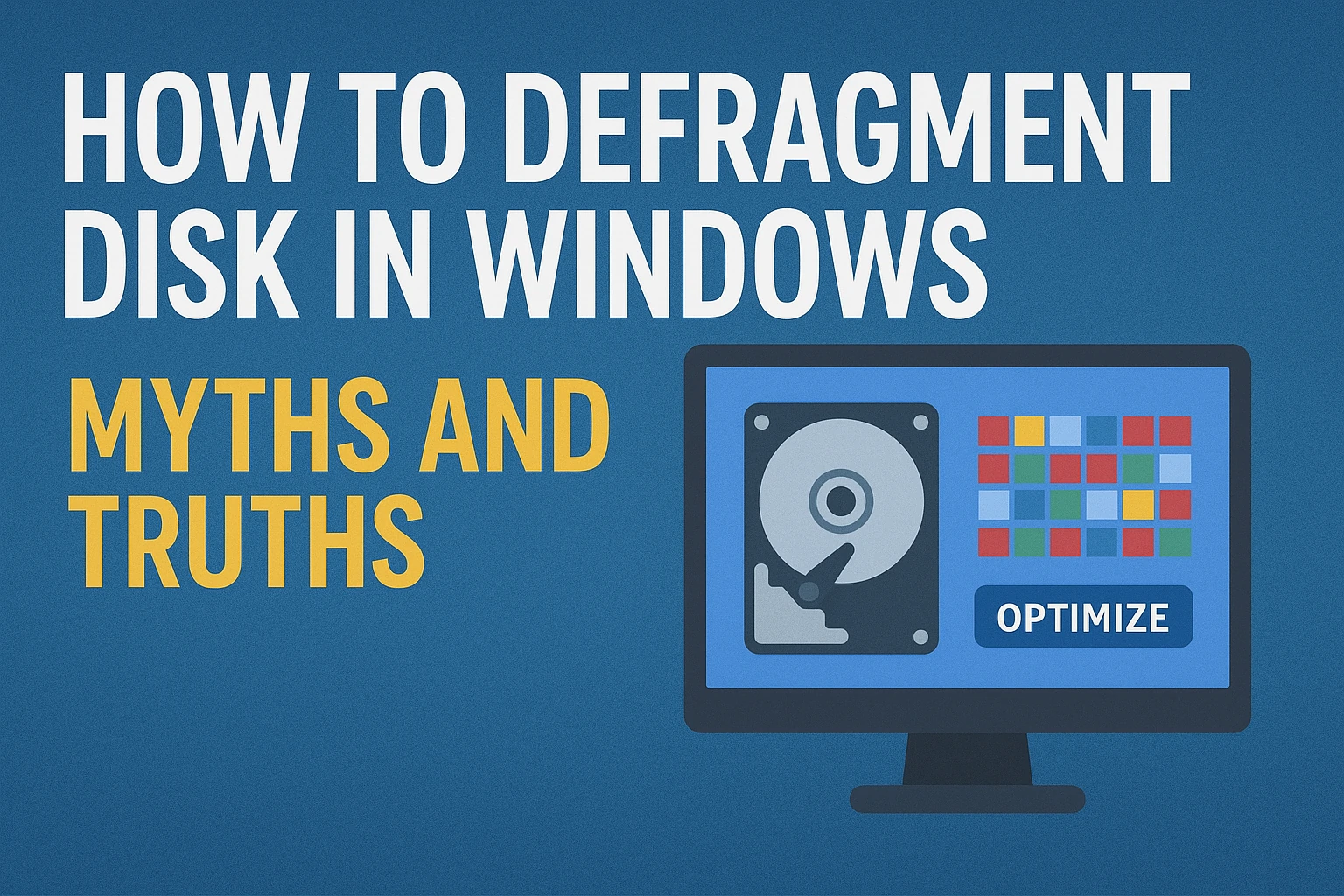
Disk defragmentation is the process of rearranging the data on a hard disk drive (HDD) so that files are stored in contiguous blocks rather than scattered across the platter. This reduces the read-head travel time, which can improve access speed. The built-in Windows utility, formerly called “Disk Defragmenter” and now known as Microsoft Drive Optimizer, handles this for you.
On modern versions of Windows, including Windows 10 and Windows 11, the tool may run automatically for HDDs, but the details matter.
Anúncios
Why It Still Matters (for HDDs)
Even though SSDs (solid-state drives) have largely replaced HDDs in many systems, many PCs still use HDDs – whether internal, external, or as secondary storage. On an HDD, fragmentation can still degrade performance. The key points:
-
An HDD reads data by moving a mechanical head to different locations on a spinning platter; if file fragments are scattered, the head has to travel more, increasing latency.
-
Defragmenting reduces that head movement and can lead to quicker file access, faster boot-times, and smoother application performance.
-
The built-in Windows tool can detect HDD vs SSD and act accordingly; you don’t want to run manual defrag on an SSD.
HDD vs SSD Myths About Defragmentation
So, for HDDs this is still a relevant task. For SSDs the benefits are minimal or zero, and aggressive defragmentation may reduce lifespan.
Also read: How to Recover Deleted Files on Windows / macOS
How to Defragment a Disk in Windows (Step-by-Step)

Here’s a straightforward guide:
-
Press Windows key + S (or click Start) and type “Defragment and Optimize Drives”.
-
In the window that appears, you will see your drives and their current status (e.g., “Needs optimization”, “OK”, fragmentation % etc.).
-
Identify the drive you want to optimize. Make sure it is an HDD (not an SSD) unless you specifically know what you’re doing.
-
Click Analyze (optional) to see how fragmented the drive is.
-
If fragmentation is high (commonly > 10-15 % on an HDD) click Optimize to run defragmentation/optimization.
-
Depending on the size and state of your drive, this could take minutes to hours. Best to run when you won’t need the PC heavily.
-
After completion, you might re-analyze and confirm the fragmentation percentage has dropped.
-
Consider setting the schedule (in the same utility) to run weekly or monthly if desired. Windows does this automatically by default for many HDDs.
Pro tip: Close large applications, avoid heavy disk loads during the defrag, and ensure you have sufficient free space (at least 10-20%) for the tool to rearrange blocks effectively.
Myths and Truths about Defragmentation
Myth 1: “You Must Defragment Every Week to Keep Performance”
Truth: While regular maintenance is good, the built-in Windows scheduler already triggers optimization for HDDs by default (weekly or when idle). Manually forcing weekly defragmentation is often unnecessary and can even be wasteful of your time.
Myth 2: “Defragmentation Always Improves Performance Dramatically”
Truth: On an HDD that is heavily fragmented, yes you’ll often notice measurable improvements. But on lightly fragmented drives (or SSDs) the performance boost may be negligible or nonexistent. Also, other bottlenecks (RAM, CPU, background tasks) often limit performance more than disk fragmentation.
Myth 3: “You Should Definitely Defragment Your SSD”
Truth: No—and this is important. SSDs operate entirely differently from HDDs; there is no mechanical read-head travel latency, so fragmentation is largely irrelevant for speed. In fact, frequent defragmentation causes extra write cycles, which can reduce SSD lifespan. Windows detects SSDs and uses a form of “optimization” (TRIM) instead of classic defrag.
Myth 4: “If Your PC Slows Down, Just Defragment First”
Truth: Be cautious. While fragmentation could be one cause, many other factors often contribute more significantly: low free disk space, malware, background updates, faulty drivers, overheating, or failing hardware. Use defragmentation as part of broader maintenance—not automatically the first action.
Myth 5: “Third-Party Defragmenters Are Always Better than the Windows Built-in Tool”
Truth: Some third-party utilities offer advanced features (e.g., boot-level defragmentation of unmovable system files). But the built-in tool is sufficient for most users and integrates safely with Windows updates. Using third-party tools carries risk (compatibility, unnecessary complexity). Unless you explicitly need advanced features, the built-in utility is recommended.
Also read: How to Protect Your Computer from Ransomware: Complete 2025 Security Guide
Best Practices for Defragmentation & Disk Maintenance
To get the most out of defragmentation and keep your system healthy, follow these best practices:
-
Ensure free space: Try to keep at least 10-20% of the HDD free so the optimization tool has room to rearrange blocks efficiently.
-
Run during idle time: Because defragmentation uses disk and CPU resources, schedule it when you don’t need full performance (e.g., overnight).
-
Check drive health: If you notice persistent high fragmentation or very slow performance even after defrag, check for disk errors (chkdsk) or looming hardware failure.
-
Let Windows handle schedule: Unless you have a specific need, set the built-in optimizer schedule and let Windows run maintenance automatically.
-
Avoid manual defrag on SSDs: For systems with SSDs, rely on Windows’ optimization rather than manual defragmentation.
-
Combine with other maintenance: Defragmentation is only one piece of the puzzle—clear temp files, update drivers/OS, scan for malware, monitor startup programs and services.
-
Backup before major operations: While defragmentation is usually safe, if your drive has errors or interrupted operations, you could risk data issues. Always keep current backups.
When You Should Skip or Delay Defragmentation
There are scenarios where defragmentation is not advised or can wait:
-
You are using an SSD as primary or only storage. In that case, the built-in optimizer’s schedule suffices; manual defrag offers negligible benefit.
-
Your HDD is nearly full (e.g., less than 5% free); defragmentation will struggle to find space for re-arrangement and may take a very long time.
-
The drive is showing signs of hardware failure (unusual clicks, SMART warnings, corrupt files). In that case, your priority should be backup and replacement, not defrag.
-
The PC is in active heavy use (video editing, large I/O loads); defragmentation during that time will interrupt workflows—schedule it for downtime.
-
You have already recently optimized the drive and fragmentation percentage is low (for instance < 5-10% on an HDD). Another defrag in short order will yield minimal gains.
Also read: Why Is My Mac Running Slow? 10 Fixes to Speed It Up