Anúncios
In the fast-moving world of technology, nothing is more critical than ensuring your digital assets are safe. Your WordPress site is no exception. A single hack, server failure, or plugin conflict can undo months or even years of work. That is why automatic backups are not optional, they are essential.
In this post I will guide you, step by step, to activate automatic backups in WordPress. Along the way I will share best practices, tips specific to the Adcod domain, and suggestions for internal links on Adcod that can bolster SEO and user experience.
Anúncios
When you implement a reliable backup strategy, you gain more than just data protection, you gain control, confidence, and continuity. Automated backups act as your invisible safety net, silently capturing every change and securing your progress without disrupting your workflow. Whether you manage a personal blog, an e-commerce store, or a large-scale corporate website, consistent backups ensure that no matter what happens, from a sudden malware attack to an accidental deletion, your website can be restored in minutes, not days.
Why Automatic Backups Are Non-Negotiable
You might think manual backups are “good enough.” But the reality is that manual is too slow and too error-prone for modern web environments. Some reasons to insist on automatic backups:
Anúncios
-
Human error: You forget. You get busy. A backup fails.
-
Sudden failures: Servers crash, hosting gets compromised, plugins break.
-
Rollback: You want to restore your site to a prior state after a bad update.
-
Peace of mind: You know backups are running reliably behind the scenes.
WordPress itself does not include full automatic backups out of the box. You must enable them via plugins, via your host, or via cron jobs.
As WordPress’s own documentation says, your site consists of two key parts: the database (your posts, options, users, etc.) and the files (themes, plugins, uploads, WordPress core). Both must be backed up.
Step 1: Choose a Reliable Backup Plugin (or Host Feature)
To activate automatic backups, you generally rely on two routes:
-
Host-provided backup / server control panel
-
WordPress plugin that schedules backups and stores offsite
Host-provided backup tools
Some web hosts include automatic backups in their control panel. If Adcod’s hosting plan supports backups (check in the Adcod hosting dashboard or ask support), that is a possible route. But often hosts:
-
Limit retention (e.g. keep 7 daily backups)
-
Store backups on the same server (risky)
-
Do not allow fine control over schedule or offsite storage
If your host’s backup is robust, you can use it — but always supplement with a plugin for extra security.
WordPress backup plugins — recommended options
From current industry comparisons, some top plugins are:
-
UpdraftPlus — very popular, free + premium tiers, supports many remote storage options.
-
BlogVault — reliable, full site backups, incremental, offsite storage.
-
Duplicator (Pro) — often used for migrations and backup.
-
Others like WPvivid, BackWPup, etc.
Each plugin has pros and cons. For example, UpdraftPlus is excellent for many sites, but its free plan limits some features. BlogVault tends to scale better for large sites.
Tip for Adcod: choose a plugin that supports storing backups in external storage (Google Drive, Dropbox, Amazon S3, etc.) rather than keeping them only on your WordPress server.
Also read: Machete WordPress Plugin Review: The Lightweight Toolbox for Faster, Cleaner Sites
Step 2: Install and Activate the Plugin
As an example, let’s take a closer look at UpdraftPlus, one of the most trusted and widely used WordPress backup plugins available today. Known for its reliability, intuitive interface, and flexibility, UpdraftPlus allows users to automate full site backups with just a few clicks. It supports multiple remote storage options, including Google Drive, Dropbox, Amazon S3, and others, making it ideal for both beginners and advanced users who want complete control over where their data is stored.
The process of configuring UpdraftPlus also serves as a perfect model for understanding how most WordPress backup plugins operate, since the fundamental steps — installation, activation, scheduling, and remote storage setup — are similar across nearly all tools in this category.
-
In your WordPress admin dashboard, go to Plugins → Add New.
-
Search for “UpdraftPlus” (or the name of your chosen plugin) and click Install Now.
-
Click Activate.
-
After activation, a new menu (for example, “UpdraftPlus Backups”) appears under Settings or on its own.
Step 3: Configure Remote Storage
One of the most critical decisions when setting up automatic backups is choosing where to store them. Keeping backups on the same server as your website is risky because if that server experiences a failure, cyberattack, or data corruption, you could lose both your site and the backups at once.
The safest and most efficient approach is to store your backups externally, using cloud storage services or remote servers that are independent of your main hosting environment. This strategy not only ensures data redundancy but also gives you the flexibility to restore your website quickly, no matter what happens to your original server.
Within UpdraftPlus (or similar plugin), go to the Settings tab of the plugin.
-
Select one or more remote storage options: Google Drive, Dropbox, Amazon S3, etc.
-
Authenticate the plugin with the remote storage service.
-
Save settings.
Now backups will be pushed offsite automatically.
Step 4: Schedule Automatic Backups
Still in the plugin settings:
-
Choose a schedule for Files backups (for example, every 12 hours, daily, or weekly).
-
Choose a schedule for Database backups (often more frequent, e.g. every 6 or 12 hours).
-
Choose how many backup sets to retain (for example, keep 2–4 backups).
-
Save changes.
Once this is set, the plugin will run backups in the background without your manual intervention.
In UpdraftPlus, for instance, you can set the plugin to automatically backup just before updates to WordPress core, themes, or plugins (premium feature).
Also read: WordPress vs Shopify: Which Platform Should You Choose for Your Online Store in 2025?
Step 5: Perform a Test / Manual Backup
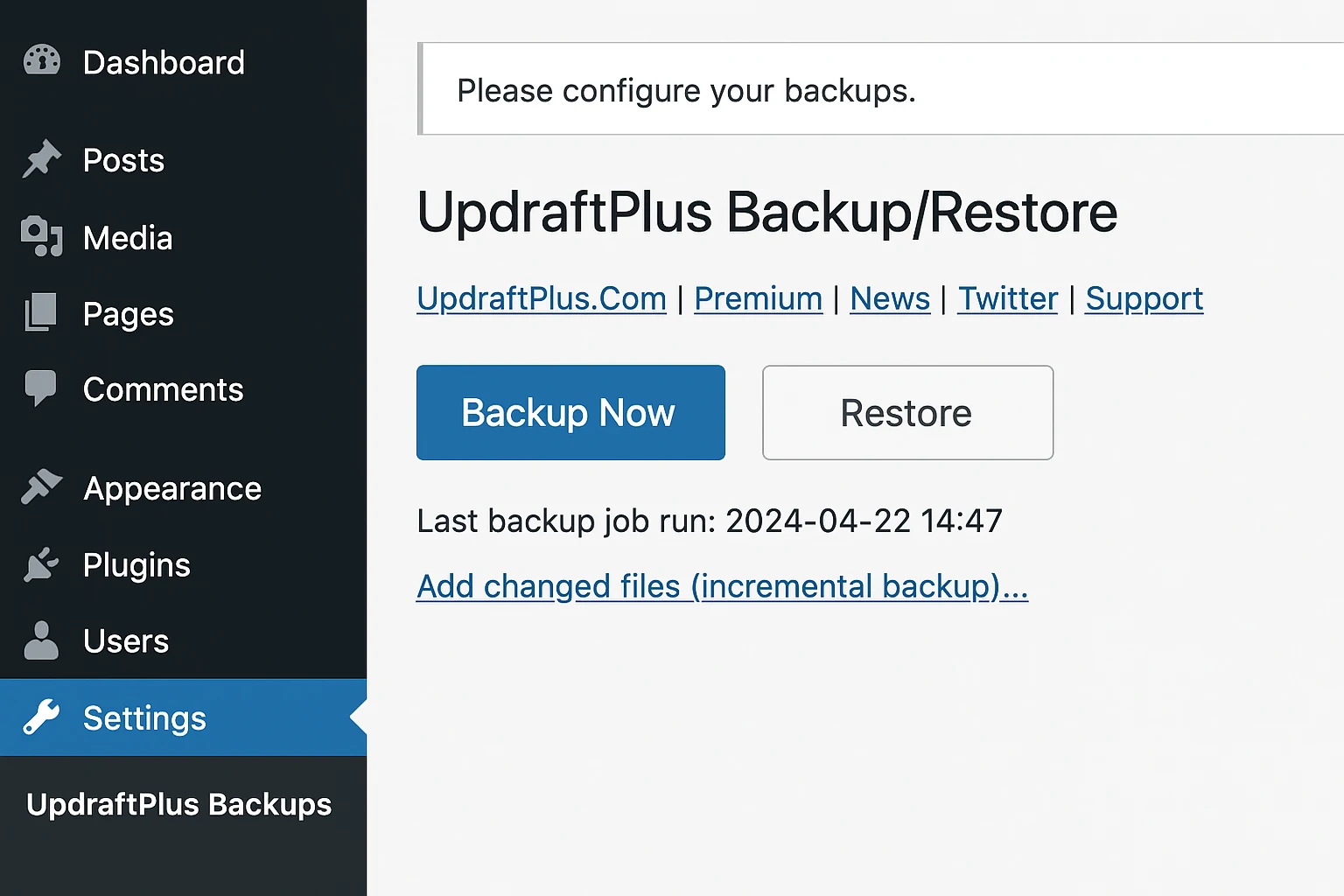
Once your automatic backup settings are properly configured, it is highly recommended to perform an initial manual backup to verify that everything is functioning correctly. This process is typically as simple as clicking the “Backup Now” button within your chosen plugin. When prompted, make sure to select both Files and Database to capture a complete snapshot of your website.
This initial backup serves as a baseline, confirming that your configuration is sound and that your remote storage is receiving the data as expected. It also gives you the confidence that, if needed, you can restore your site seamlessly from this point forward.
Once finished:
-
Check that the backup appears in the plugin’s list of existing backups.
-
Verify that the files are stored in the remote storage destination you selected.
-
Try to download the backup locally.
-
Optionally, restore the backup in a staging environment to ensure it works.
Testing ensures your automatic system will function when disaster strikes.
Best Practices and Tips
-
Follow the 3-2-1 Rule: keep at least 3 copies of data, on 2 different media, 1 copy offsite (e.g. remote storage).
-
Retain enough backups: if a bug appears days after update, you want to roll back to a safe version.
-
Monitor backup logs: periodically verify there are no errors.
-
Encrypt backups if your plugin supports it, especially database backups.
-
Update plugin and test after updates: make sure backup still works after you update WordPress, plugins, or themes.
-
Delete old backups automatically so storage does not overflow server or remote limits.
WordPress official documentation also recommends periodic manual backups in addition to automated ones.