Anúncios
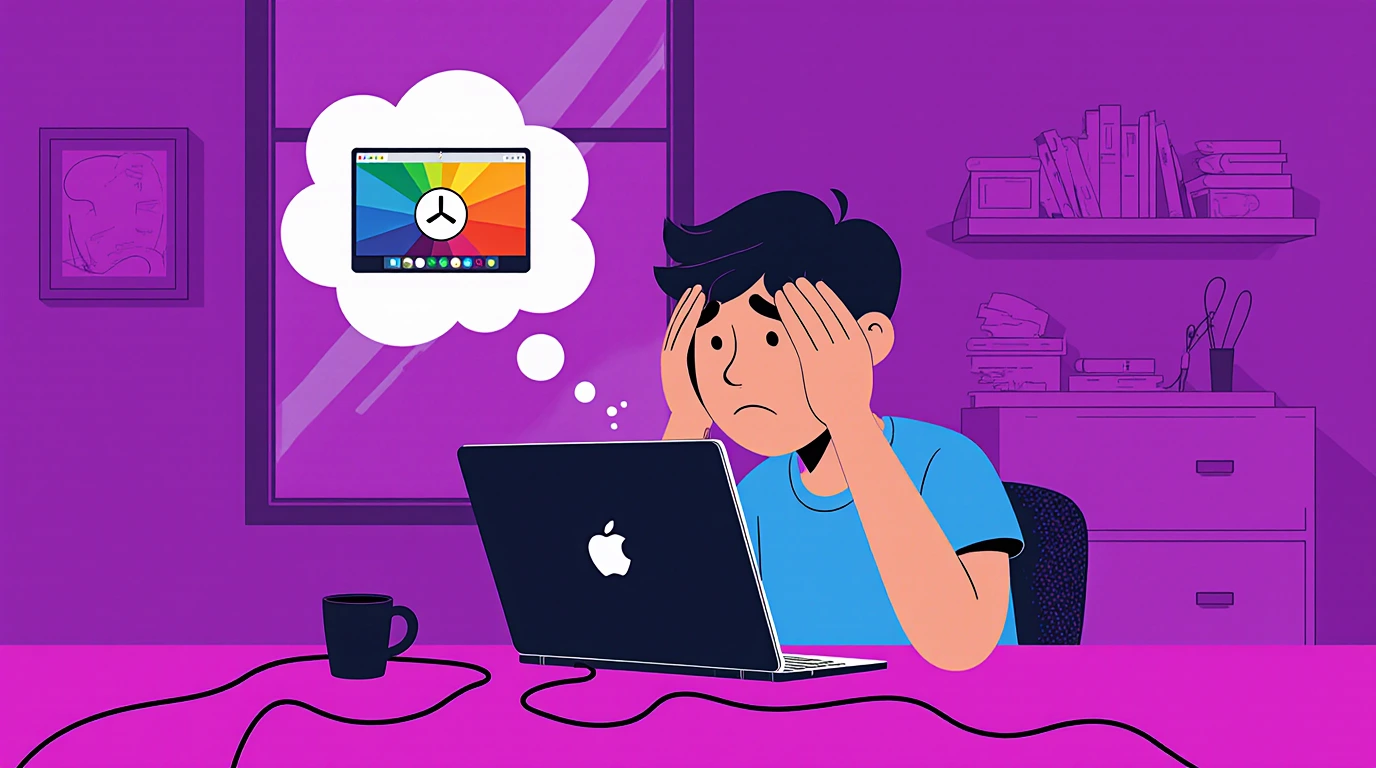
Why is my Mac running slow? If you’ve ever asked yourself this question, you’re not alone. Even powerful and reliable Macs eventually start showing signs of slowdown: apps take forever to load, your browser crawls, and sometimes the whole system freezes. The good news is—you don’t have to buy a new Mac. With the right tweaks, you can bring back that smooth, snappy performance.
In this guide, we’ll break down the top reasons why your MacBook or iMac is running slow and show you 10 proven fixes to speed it up. Each solution is explained in plain English so anyone (even a 16-year-old) can follow along. Let’s dive in.
Anúncios
Why Is My Mac Running Slow?
There are a few common culprits behind sluggish Macs:
- Too many background apps eating up CPU and RAM
- Full hard drive packed with files, photos, and videos
- Browser overload from dozens of open tabs and extensions
- System clutter like cache files and login items
- Visual effects that look nice but consume resources
In simple math: 50% heavy files and media, 30% unnecessary apps, 20% browser data. Together, they drag your Mac down.
Anúncios
So how do you fix it? Let’s go through the 10 steps that actually work.

How to Fix a Slow MacBook: 10 Guaranteed Solutions
1. Too Much Running in the Background
If your Mac is struggling with basic tasks, background processes are the first thing to check. These can quietly eat up CPU, RAM, and battery life.
Quick Fix: Use Activity Monitor
- Open Finder > Applications > Utilities > Activity Monitor.
- Click the Memory tab to see which apps are hogging RAM.
- Click the “x” icon to quit unnecessary apps and processes.
Pro tip: Don’t shut down processes you don’t recognize—some are vital to macOS.
Also read: How to Get Rid of a Virus on Mac or PC
2. Hard Drive Is Getting Full
Nothing slows down a Mac more than an overloaded drive. macOS needs free space for temporary files and smooth multitasking.
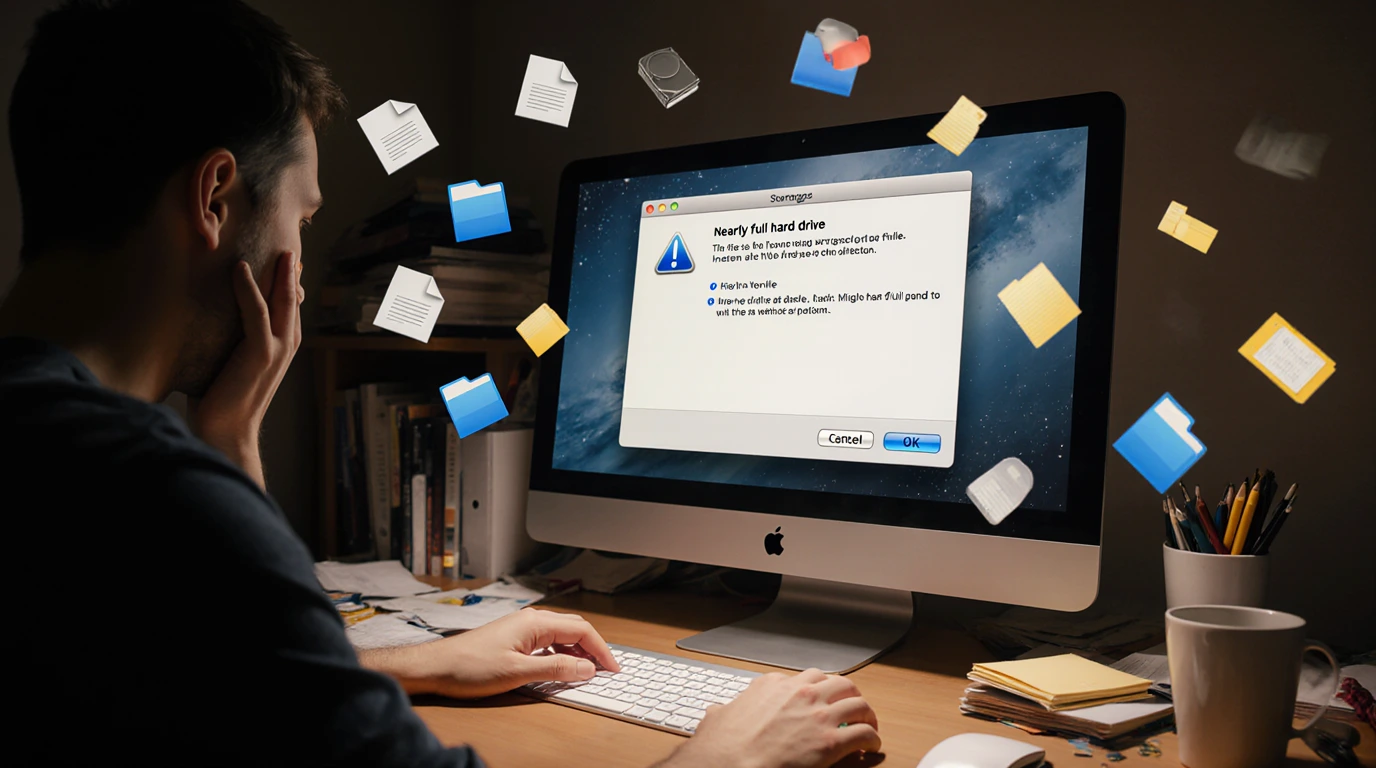
Quick Fix: Free Up Space
- Delete old movie files, large downloads, and unused documents.
- Move photos and videos to iCloud or an external drive.
- Empty your Trash regularly.
For a deeper cleanup, use tools like Disk Utility or third-party cleaners to remove hidden caches and logs.
3. Mac Is Overheating
Overheating is a common reason for slowdown. When your Mac gets too hot, the CPU throttles itself to prevent damage, making everything crawl.
Quick Fixes:
- Close unnecessary browser tabs and extensions.
- Check Activity Monitor > CPU for apps using too much power.
- Keep your Mac out of direct sunlight and on a hard surface (not a blanket).
- Update macOS and all apps to the latest versions.
Tip: If fans sound like jet engines, clean them or use a cooling pad.
4. Check for Malware
Yes, Macs can get malware. Infected systems run background scripts that eat resources and slow everything down.
Quick Fix: Scan and Remove
- Run a malware scan with trusted software.
- Manually review apps you don’t recognize and delete suspicious ones.
Hint: A slow Mac with random popups is often a sign of adware.
Also read: How to Fix a Loud Laptop Fan
5. Storage Not Optimized
macOS has built-in tools to help manage storage, but many people never use them.
Quick Fix: Optimize Storage
- Go to Apple menu > System Settings > General > Storage.
- Enable Store in iCloud for large files you don’t need locally.
- Use Optimize Storage to clear old Apple TV downloads and email attachments.
6. Not Enough RAM
RAM is your Mac’s short-term memory. When it’s full, apps freeze and multitasking feels painful.

Quick Fix: Free Up RAM
- Open Applications > Utilities > Terminal and type:
sudo purge - Quit memory-hogging apps.
- If possible, upgrade your Mac’s RAM (for older models).
7. Slow Internet Connection
Sometimes, it’s not your Mac—it’s your Wi-Fi. A weak connection can make apps and browsers feel slow.
Quick Fix: Improve Connectivity
- Use an Ethernet cable for a faster, stable connection.
- Reset your router.
- Move your Mac closer to the router.
- Run Wireless Diagnostics (hold Option + click Wi-Fi icon).
8. Too Many Unused Apps
Apps you no longer use still eat storage, and some run hidden background processes.
Quick Fix: Uninstall Apps Properly
- Open Finder > Applications.
- Drag apps to Trash and empty it.
- Use an uninstaller (like AppCleaner) to remove leftovers.
Pro tip: Do a seasonal cleanup. If you haven’t used an app in six months, delete it.
Also read: How to Stop Mac from Overheating
9. Too Many Login Items
Login items are apps that launch automatically when your Mac boots. The more you have, the slower your startup.
Quick Fix: Manage Login Items
- Go to System Settings > General > Login Items.
- Disable unnecessary apps from launching on startup.
Keep only essentials like antivirus or cloud backup. Everything else can be launched manually when needed.
10. Visual Overload
Animations and effects make macOS look slick, but they tax older hardware.
Quick Fix: Reduce Effects
- Go to System Settings > Desktop & Dock.
- Turn off Animate opening applications and Magnification.
- Go to Accessibility > Display and enable Reduce motion and Reduce transparency.
Bonus Fixes for Extra Speed
Reset PRAM/NVRAM
PRAM stores small system settings. Resetting can fix glitches and speed issues.
- Shut down your Mac.
- Restart and hold Option + Command + P + R for 20 seconds.
Reset SMC (System Management Controller)
The SMC manages power, fans, and thermal functions. Resetting it often helps with overheating or battery-related slowdowns.
Run Disk Utility First Aid
Check for drive errors with Disk Utility > First Aid to repair your storage.
Upgrade to SSD
If you still have an HDD, switching to an SSD is the single biggest upgrade you can make. Apps and files load instantly.
Keep macOS Updated
Always install the latest macOS updates. They include performance improvements and bug fixes that make your Mac faster.
Final Thoughts: How to Fix a Slow Mac
When you find yourself wondering, “Why is my Mac running slow?”—remember that the causes are usually simple: clutter, too many apps, lack of storage, or outdated settings. The fixes are straightforward and often free.
By following these 10 steps—cleaning your storage, managing background apps, reducing visual effects, and running system resets—you can speed up your MacBook or iMac without spending a cent.
Think of it as spring cleaning for your Mac. Once you clear out the junk and give it some breathing room, it’ll feel fresh and snappy again. So the next time your Mac slows down, you’ll know exactly what to do.
Why is my Mac running slow? Now you know the answer—and the solutions.