Anúncios
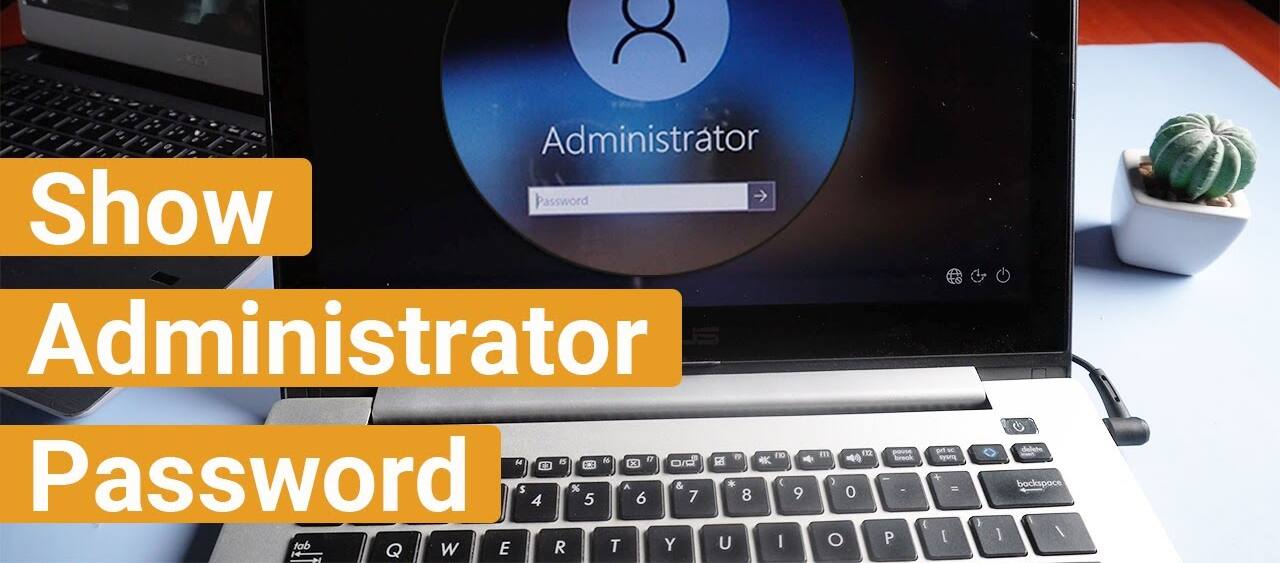
In the realm of Windows 10 or Windows 11, the administrator password holds the key to unlocking a realm of possibilities, allowing users to access elevated privileges and take full control of their systems. One of the most potent tools at your disposal for revealing this coveted password is the Command Prompt. In this comprehensive guide, we will delve into the intricacies of finding the administrator password in Windows 10 using the Command Prompt, providing you with the knowledge and tools needed to navigate this process safely and effectively.
Can You Show Administrator Password Using CMD in Windows 11/10/8/7?
You might be wondering if the Command Prompt (CMD) can be your trusted ally in revealing the administrator password. Unfortunately, for the default administrator account, this isn’t possible. Windows safeguards this critical security information from casual view. However, if you’re dealing with an admin account, you can still reset the password using CMD. Before you feel disheartened, let us assure you that there are alternative tools available to help you achieve your goal.
Anúncios
Also read: How to Fix Your Windows License Will Expire Soon Error
Navigating the Command Prompt

Anúncios
The Command Prompt, often referred to as the CMD, serves as a versatile text-based interface within the Windows operating system. It grants users the ability to execute a multitude of commands, offering a gateway to manipulate files, alter system settings, and run programs. However, accessing the administrator password via CMD requires elevated privileges.
To embark on this journey, follow these steps:
Step 1: Open the Command Prompt
- Press
Windows+Ron your keyboard to summon the Run dialog box. - Type
cmdand pressEnter.
Step 2: Discover User Accounts
- Within the Command Prompt, type
net userand pressEnter. This command will unveil a list of all user accounts on your computer.
Step 3: Unlock the Administrator Account
- Type
net user "username" *and pressEnter, replacing “username” with the name of the administrator account. - A prompt will request a new password for the account. Enter the new password and confirm it by typing it again.
- Close the Command Prompt window.
The Power of “Net User” Command
The net user command stands as the cornerstone of this operation. It enables users to access crucial information about user accounts, including the administrator. By executing this command within the Command Prompt, you unveil the username, password, and additional account details.
Using “Net Accounts” Command
While the net user command offers a direct route to accessing the administrator password, the net accounts command serves as a complementary tool. It provides insight into the current settings of user accounts, including their usernames and passwords. To utilize this command:
- Open the Command Prompt.
- Type
net accountsand pressEnter. This will display the current settings for user accounts, including the username and password.
Empowering User Privileges with “Net Localgroup” and “Net Group”
To further enhance your control over user accounts and their privileges, the net localgroup and net group commands come into play.
Using “Net Localgroup” Command
- Open the Command Prompt.
- Type
net localgroupand pressEnter. This will return the list of user accounts and their respective privileges. - Modify user privileges by typing
net localgroup /addfollowed by the username of the user account. This action adds the user to the administrator group, granting them elevated privileges.
Utilizing “Net Group” Command
- Open the Command Prompt.
- Type
net groupand pressEnter. This will display the list of user accounts and their group memberships. - Modify group memberships by typing
net group /addfollowed by the username of the user account. This addition confers the privileges associated with that group.
Also read: How to Fix 0xc00007b/0xc000007b Error on Windows: A Comprehensive Guide
Frequently Asked Questions
Q1. What is the command prompt? Answer: The command prompt is a text-based user interface in Windows that allows users to execute commands, applications, and other related tasks. It is similar to the command line found in most operating systems and is a primary tool for troubleshooting Windows.
Q2. How to open the command prompt in Windows 10? Answer: There are several methods to open the command prompt in Windows 10. The easiest is to press Windows Key + R to open the Run dialog box, then type cmd and press Enter. Alternatively, you can search for cmd in the Start menu or taskbar, or right-click the Start menu and select Command Prompt.
Q3. What is the command to find the administrator password in Windows 10? Answer: The command to find the administrator password in Windows 10 is net user administrator. This command reveals the name of the current user account and the password for the administrator account.
Q4. How to run the command to find the administrator password? Answer: To run the command to find the administrator password, open the Command Prompt using one of the methods mentioned earlier. Then, type net user administrator and press Enter. This displays the name of the current user account and the administrator password.
Q5. What is the default administrator password? Answer: The default administrator password in Windows 10 is blank, meaning there is no password set for the default administrator account. However, if you’ve changed the default administrator password, the new password will be displayed after running the net user administrator command.
Q6. What to do if I forget the administrator password? Answer: If you’ve forgotten the administrator password, you can reset it by booting into the Windows Recovery Environment. This requires a Windows installation disc or USB drive. Insert it into your computer, boot from it, and follow the on-screen instructions to reset the password.
In closing, remember that the Command Prompt is a powerful tool that should be wielded with care. With this guide, you possess the knowledge to uncover the administrator password, but it’s crucial to use this information responsibly and ethically. Mastery of the Command Prompt can empower you to take full control of your Windows 10 system while ensuring its safety and security.