Anúncios
A loud laptop fan is a symptom, not the root cause. Excess heat from dust buildup, blocked airflow, runaway apps, or aging hardware can push the fan to max RPM. This guide gives clear, prioritized steps—from quick, no‑tools fixes to deeper cleaning and repair cues—to quiet the noise safely and effectively.
- A loud fan usually signals heat from blocked vents, dust, or high CPU/GPU usage.
- Start with quick wins: improve airflow, close heavy apps, update software, and scan for malware.
- Grinding or rattling sounds often indicate a failing fan—plan for repair.
Why Laptop Fans Get Loud
Fan speed rises as internal temperatures climb. Common triggers:
Anúncios
- Blocked airflow from soft surfaces (beds/couches) or desk clutter.
- Dust in vents, fans, and heatsink fins restricting cooling.
- High CPU/GPU usage from background processes, browser tab sprawl, games, or malware.
- Outdated OS, drivers, or firmware affecting power/thermal control.
- Hardware wear: fan bearings, clogged heatsink channels, or dried thermal paste.
Also read: How to Fix Horizontal or Vertical Lines on MacBook
Immediate, No‑Tools Fixes (2–5 minutes)
Start here—these steps resolve a large share of cases.
Anúncios
- Improve airflow
- Move the laptop to a hard, flat surface or a ventilated stand.
- Keep intake/exhaust paths clear; give exhaust a few inches of space.
- Close heavy background tasks
- Windows: Task Manager (Ctrl+Shift+Esc) → Processes → sort by CPU/GPU/Memory → end unnecessary tasks.
- macOS: Activity Monitor → CPU tab → quit resource-heavy processes.
- Switch to cooler power modes
- Windows: Settings → System → Power → choose Balanced or Battery Saver. Optional: Advanced power settings → Processor power management → lower Maximum processor state slightly (e.g., 90–95%).
- macOS: System Settings → Battery/Power Adapter → prefer settings that reduce peak performance when noise matters.
- Update the system
- Install OS updates and graphics/chipset drivers. On Windows laptops, apply OEM BIOS/firmware updates that can optimize thermal control.
- Run a malware scan
- Sudden, unexplained CPU spikes often come from malware or rogue extensions. Scan, remove, and reboot.
- Browser discipline
- Reduce tab sprawl, disable auto‑playing video, and trim nonessential extensions.
Tip: If noise immediately drops after closing a specific app (e.g., game, editor, dozens of tabs), that app is the heat source. Use it with performance caps (see Software Optimization).

Quick Cleaning for Airflow (Beginner Friendly)
If noise persists after software steps, airflow is likely compromised.
- Power down safely
- Shut down completely, unplug the charger, and let the system cool.
- Use compressed air correctly
- Keep the can upright to avoid liquid propellant.
- Apply short, controlled bursts at intake and exhaust vents.
- Angle slightly so dust goes out, not deeper inside.
- Avoid free‑spinning the fan with air; if accessible, gently block the blades with a non‑metal tool while blowing.
- What to expect
- A visible dust puff on first pass is normal.
- With restored airflow, fan noise should drop under similar workloads.
- Repeat every 3–6 months; more often in dusty or pet‑heavy environments.
- What not to do
- Avoid vacuuming internals (static risk).
- Don’t insert metal tools into vents.
Also read: Unlocking Creativity with Gramhir Pro AI
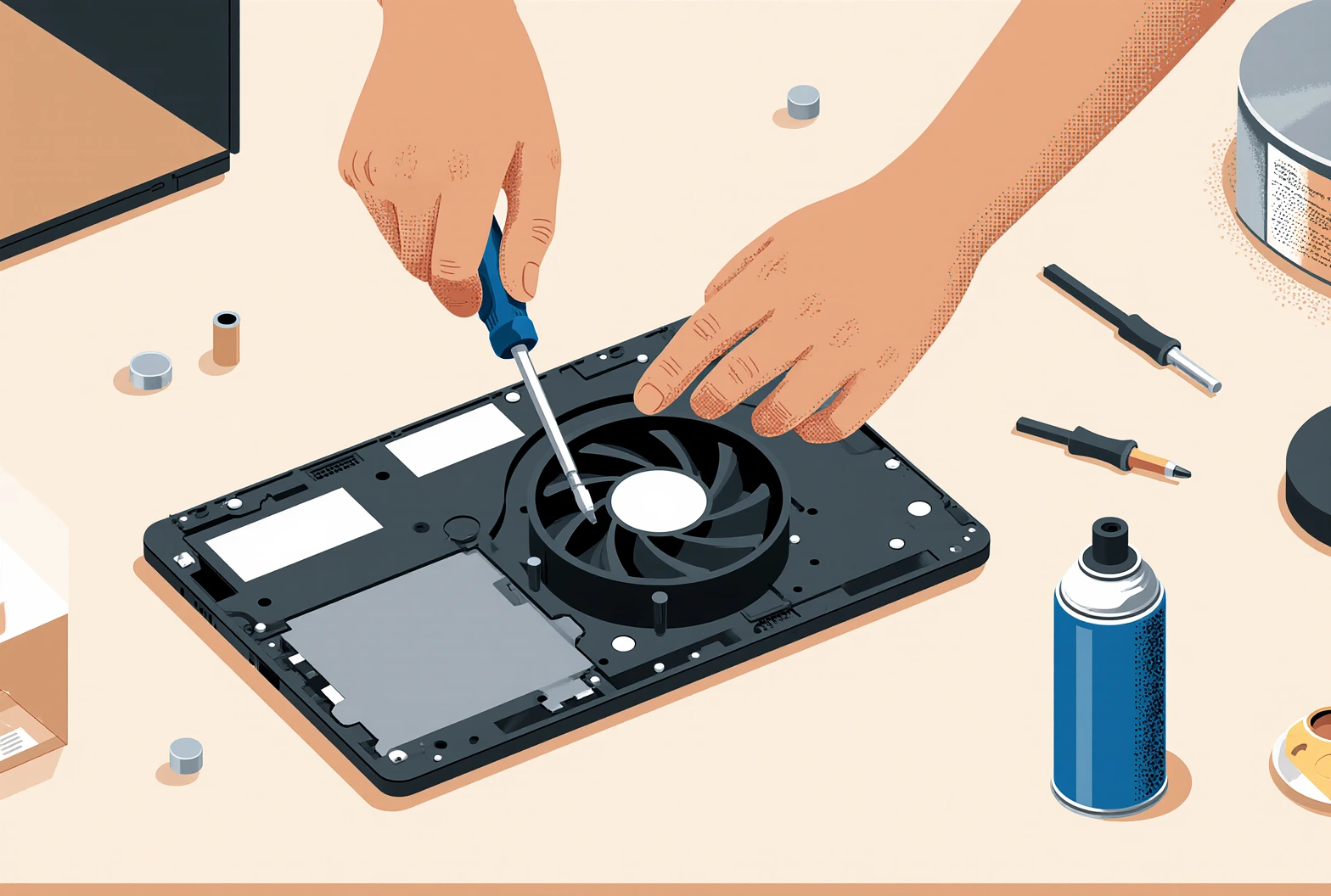
Light DIY: Deeper Cleaning and Thermal Refresh (Intermediate)
Proceed only if comfortable opening the device and it won’t void the warranty. Check a model‑specific service manual or trusted teardown first.
- Open the bottom panel
- Use the correct screwdriver; track screw positions and lengths.
- Lift carefully; some models have ribbon cables attached to the bottom cover.
- Clean the cooling path
- Hold fan blades still to protect bearings.
- Blow dust out of the fan housing and through heatsink fins.
- Use a soft antistatic brush to dislodge lint mats blocking fin channels.
- Inspect for issues
- Look for bent fins, cable rub, oil residue (bearing wear), or debris.
- Consider replacing thermal paste
- On older systems, dried paste can degrade heat transfer.
- Apply a small, even amount of reputable thermal compound; maintain even heatsink pressure.
- Avoid disturbing thermal pads; replace pads with matching thickness if damaged.
- Reassemble and test
- Reseat connectors firmly and torque screws evenly.
- Boot and monitor temps/fan behavior at idle and under moderate load.
Stop and seek a professional if:
- Grinding, clicking, or rattling persists.
- The fan fails to spin smoothly or stalls intermittently.
- Thermal throttling or sudden shutdowns continue after cleaning.
Software Optimization for Quieter Operation

Reduce heat at the source with smarter configuration.
- Cap performance peaks
- Windows: In Advanced power settings, lower Maximum processor state slightly to reduce turbo spikes that trigger loud ramps.
- Gaming: Cap FPS to the display refresh, enable V‑Sync, or set an FPS limit in‑game or via GPU software.
- Manage background services
- Disable unnecessary startup apps and aggressive auto‑updaters.
- Schedule heavy tasks (backups, rendering) for cooler times of day.
- Keep GPU/drivers current
- Graphics drivers often include power and thermal optimizations.
- macOS stability
- If behavior is erratic on Intel Macs, an SMC reset can help. On Apple silicon, a full shutdown and restart clears many transient power states.
- Temperature awareness
- Use reputable monitoring tools. If temps stay high during light use (e.g., >85°C), revisit airflow/dust cleaning or plan for service.
Cooling Accessories and Environment
- Cooling pad
- A quality pad with a mesh surface and large, quiet fans improves intake and reduces RPM spikes—especially on thin‑and‑light models.
- Stand/elevation
- Slight rear elevation can enhance underside airflow without compromising ergonomics.
- Room temperature
- High ambient temps raise the thermal baseline. Improve room ventilation or use a small desk fan to lower intake air temperature.
Red Flags That Point to Hardware Repair
- Persistent grinding, clicking, buzzing, or rattling (bearing damage or blade interference).
- Loud fan at idle after software fixes and thorough cleaning.
- Frequent thermal throttling, sudden shutdowns, or crashes under light workloads.
- Fan stalls on boot, spins unevenly, or fails intermittently.
- Abnormally high temps despite restored airflow and fresh thermal paste.
Next steps:
- Back up data immediately.
- Check warranty or extended coverage; contact the manufacturer or a trusted repair shop.
- Out of warranty, fan module replacements are typically straightforward and cost‑effective compared to board‑level repairs.
Also read: How to Stop Mac from Overheating
Platform‑Specific Tips
Windows
- Power plan tuning
- Settings → System → Power & battery: Balanced or Battery Saver for everyday use.
- Advanced power settings → Processor power management: reduce Maximum processor state a bit (e.g., 90–95%).
- Drivers and firmware
- Keep Intel/AMD/NVIDIA graphics, chipset, and storage drivers updated.
- Apply BIOS/UEFI updates from the OEM for thermal and fan‑curve improvements.
- Startup/services hygiene
- Task Manager → Startup: disable nonessential auto‑launchers (messaging apps, updaters, launchers).
- Use built‑in security tools and schedule maintenance during off hours.
macOS
- Process control
- Activity Monitor → CPU: quit runaway apps and helpers; let Spotlight or Photos finish initial indexing after updates.
- Updates and resets
- Keep macOS current for power/thermal refinements.
- Intel Macs: consider an SMC reset for fan irregularities. Apple silicon: perform a full shutdown and restart to clear transient states.
- Energy settings
- System Settings → Battery/Power Adapter: choose settings that reduce peak performance when quiet operation matters.
Preventive Maintenance Checklist
- Monthly
- Wipe exterior vents/keyboard deck and reduce workspace dust.
- Review startup apps and browser extensions; remove new offenders.
- Quarterly
- Compressed‑air clean of vents/heatsinks (hold fan blades still).
- Sanity‑check typical temps; note any upward drift.
- Semiannual
- Deeper internal clean if in dusty/pet‑heavy environments.
- Consider repasting on older systems with consistently high temps.
- Always
- Use a hard, flat surface; never block intakes/exhaust.
- Keep OS, drivers, and firmware current.
Troubleshooting Flow (Quick Reference)
1) Move to a hard, flat surface; elevate rear slightly.
2) Close heavy apps/tabs; check Task Manager/Activity Monitor; run a malware scan.
3) Choose Balanced/Battery Saver (Windows) or optimize Energy settings (macOS).
4) Update OS, GPU/chipset drivers, and BIOS/firmware.
5) Clean vents with short compressed‑air bursts; avoid free‑spinning the fan.
6) If still loud: open and clean internals; clear heatsink fins; inspect the fan.
7) Repaste if temps remain high on older devices.
8) If grinding/clicking or high idle temps persist, back up and schedule a repair.
FAQ
- Why did my laptop fan get loud suddenly?
- Likely a workload spike, blocked vents, dust, or a failing fan.
- Is compressed air safe?
- Yes—short bursts, upright can, and prevent the fan from free‑spinning.
- Can a cooling pad really help?
- It won’t fix failing hardware, but it can meaningfully reduce RPM spikes and surface temps.
- When should I replace the fan?
- If noise persists after cleaning, the fan stalls, or temps stay high at idle, replacement is prudent.
- Does repasting make a big difference?
- On older systems, fresh thermal paste can noticeably lower temps and reduce fan noise.
Also read: Best WordPress Speed Optimization Plugin
Closing Advice
Treat fan noise as actionable feedback. Start with airflow and software fixes, then restore clean cooling paths. If noise persists—especially with mechanical sounds—plan for repair. A clean, well‑ventilated setup, lean background load, and current firmware keep systems quieter, cooler, and more reliable over time.