Anúncios
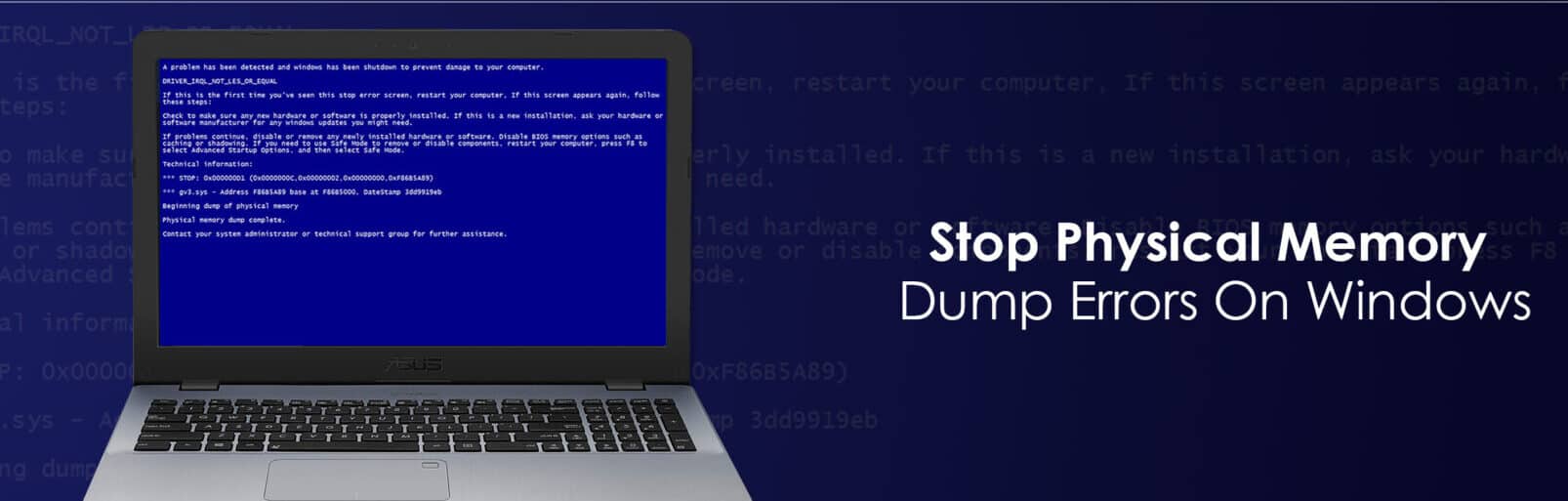
If you get Windows blue screen you already know what Physical Memory Dump is. This error witch appears only on windows OS often shows some real trouble you have with your device. This physical memory dump error can show either there is some corrupted files in software or there is some trouble /incompatible with your computer hardware system. So the Windows system dumps (saves) your settings to prevent any damage to happen with your files or hardware.
Physical Memory Dump can also be known as crash dumps – it’s mean to call crash dumps because your windows OS crashes and need to fix and restart. These crash or Physical Memory Dumps can be useful to identify the problem that led to the crash in the first place. So you need to safe them if you want to solve this problem. If you have already googled it you can find this mentioned as: core dump, blue screen of death known as 4 letters: (BSOD) and of course physical memory dump error.
Anúncios
What is Physical Memory Dump
A physical memory dump, also known as a blue screen of death (BSOD) or crash dump, is a process in which the contents of the computer’s memory are copied to a file on the hard drive. This process occurs when the computer encounters a critical error or system failure that it cannot recover from, and it is a way for the system to record information about the error for diagnostic purposes.
A physical memory dump is typically triggered by a blue screen error, which is a system error message that is displayed on the screen when the computer encounters a critical problem. The blue screen error message typically includes information about the error, such as the error code and a brief description of the problem.
Anúncios
When a physical memory dump occurs, the contents of the computer’s memory are copied to a file on the hard drive called a memory dump file. This file contains information about the error, including the state of the computer’s memory at the time of the crash, as well as other diagnostic information. The memory dump file can be used by system administrators or technical support personnel to diagnose and troubleshoot the error that caused the crash.
To prevent physical memory dumps from occurring, it is important to keep your computer’s operating system and other software up to date, and to avoid running too many programs at once. If a physical memory dump does occur, you can try restarting your computer and see if the problem resolves itself. If the problem persists, you may need to contact technical support for assistance.
As we already said in the begin physical memory dump tells you there you need to search for the problem. For example normally memory dump gives you information about last installed applications or hardware changes before the system crashes. So in short words physical memory dump creates log file there will be showed memory locations, program states, applications counters, date, time, system usage and etc. If your computer get blue screen you can’t do anything so you need to restart the system, and it may work if there was error due memory leak or if it’s hardware problem the blue screen will appear again and again.
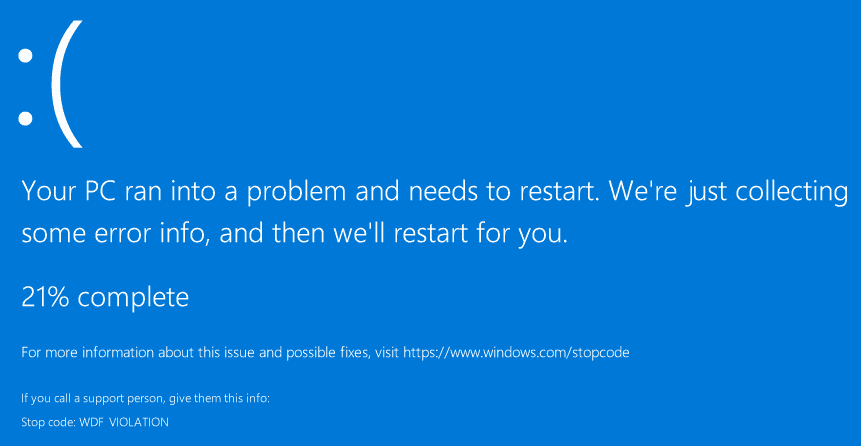
On the other hand physical memory dump errors can be caused by your machine drivers and applications that are incompatible with the operating system you use. For example if you have and old PC and it requires old drivers and there is no new compatible drivers fro Windows 10 your system crashes. Also it may happen if you install any new software and some of the files being loaded are not compatible with your current Windows operating system.
Sometimes physical memory dump error may happen then you upgrading your Graphics and Sounds drivers. They can be not compatible with your windows version if you for example use Windows 7 and the driver new version is for Windows 10. But you can do rollback or uninstall the new driver and computer will for fine again.
And finally Physical Memory Dump error can cause even such crazy factors like overclocking or even dust build op on your computer hardware and causing overheating. But for me the most common issue of Physical Memory Dump appearance is caused by corrupted files in system registry files.
How to fix Physical memory Dump Error
If you are experiencing a physical memory dump error, also known as a blue screen of death (BSOD) or crash dump, there are several steps you can try to fix the problem. Here are some possible solutions:
- Restart your computer: Sometimes, a physical memory dump error can be caused by a temporary issue that can be resolved by restarting your computer. Try restarting your computer and see if the problem goes away.
- Update your operating system and drivers: Outdated or corrupted operating system and drivers can sometimes cause a physical memory dump error. Try updating your operating system and drivers to the latest version, and see if that fixes the problem.
- Check for hardware issues: A physical memory dump error can also be caused by hardware issues, such as a failing hard drive or faulty RAM. Try running a diagnostic tool to check for hardware problems, and replace any faulty hardware if necessary.
- Scan for malware: Malware infections can sometimes cause a physical memory dump error. Try running a malware scanner to check for and remove any malware from your computer.
- Use System Restore: If the problem persists, you can try using the System Restore feature to roll back your system to a previous state where it was working properly. To do this, go to Start > Control Panel > System and Security > System, and click on the System Protection tab. Then, click on the System Restore button and follow the on-screen instructions to restore your system.
If none of these solutions work, you may need to contact technical support for assistance. Keep in mind that a physical memory dump error can be caused by a variety of issues, and the exact solution will depend on the specific cause of the problem.
Method 1: Windows, Registry, & Drivers Repair and Update
As we mentioned you before the main reason of Physical Memory Dump error may be related to corrupted Windows Registry or Drivers. So to fix Drivers you need to update all drivers on your system. You should choose carefully depending on your Windows version you need to select only ones Drivers witch belongs to your Windows version. There is no option to fix Windows Registry files without windows reinstall. Yes except windows backup if you have backup ed version.
Method 2: RAM (memory) problem

There can be RAM problem due faulty RAM hardware. For this if you have multiple RAM slots and multiple ram blocks you can take one off and see if the Physical Memory Dump error persist. If no there can be faulty ram block. Also you can use RAM checker tool for this. Just install one and scan your Memory for errors.
Method 3: – Read Your Memory’s Dump error logs if you do not want to buy new RAM
If you think this error caused by RAm memory, before replacing your ram you can read error logs and try to find online what the error means. There are plenty error codes explained on google. So first search for your error code and you will know if you need to replace your ram or no.
Method 4: Repair Windows System Files (Run SFC Utility)
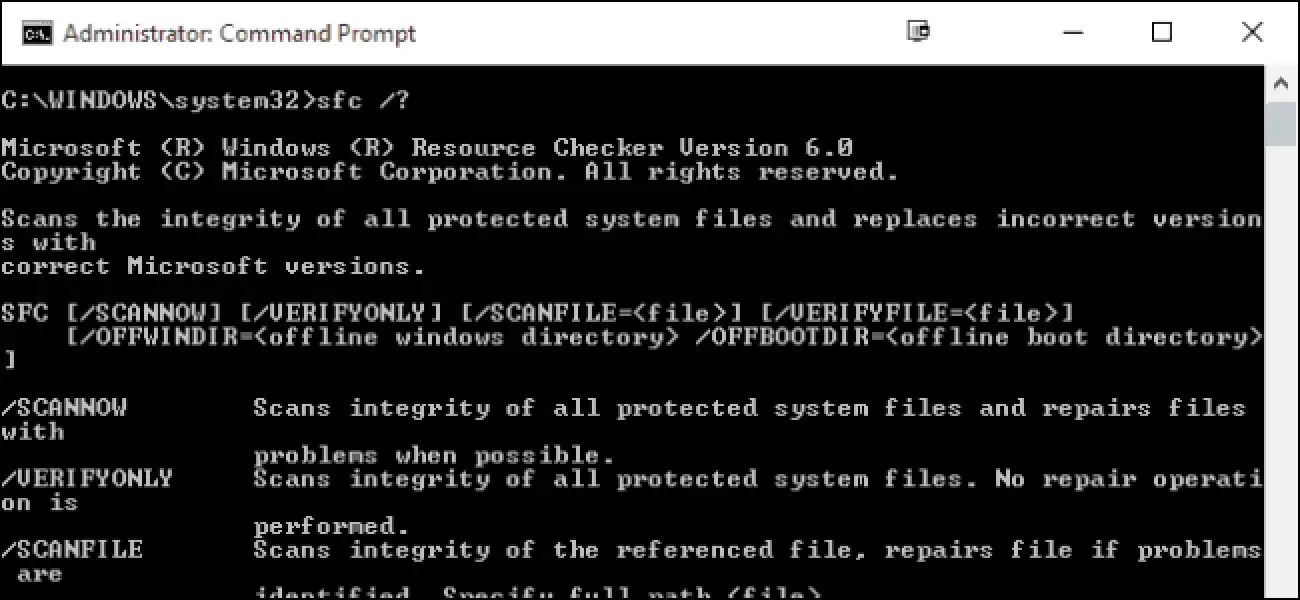
You can run Windows system file checker utility tool it will scan your system files and will detect various problems caused by corrupted, missing system files. This tool can also fix the Physical Memory Dump error problem if corrupted system files causing this. For start using SFC utility tool you need to:
- Just open Command prompt as administrator – just type in search cmd and hit enter,
- On black screen ms-dos window type command sfc /scannow and press the enter key,
- This will start scanning process and will search missing or corrupted system files on your windows system.
- If the SFC tool founds any of them they can be restored from a special folder located on %WinDir%\System32\dllcache.
- Wait until tools end the job for 100% ! And then restart your computer.
Method 5: Check Disk Drive Errors
There can also be Bad Sector or Disk error that may Cause Physical Memory Dump error. To identify if this is it you need to Run CHKDSK command that helps to find out if the disk drive causing error or not. To check your disk no matter this is SSD or HDD you need to follow these steps:
- Just open Command prompt as administrator – just type in search cmd and hit enter,
- On black MS-DOS window type command CHKDSK C: /F /R /X and hit the enter key.
- Press Y key to schedule to run the chkdsk command on next start.
- close the command prompt and Restart Your computer.
- This will start scanning and repairing process for Disk Drive Errors and problems.
- Wait until 100% complete the scanning process, after that your computer should restart automatically.
How To Avoid Physical Memory Dump Error
Please follow just few simple rules and your Windows computer will work just fine. First for sure always keep your windows version updated, always install updates regularly. Do not forget to scan and update your drivers. Also time to time shutdown and restart your computer for updates install and system changes. Also use any Antivirus program to prevent you from viruses and it would great if you won;t use any illegal pirated software because in cracks and nulled software there is many open holes.
Conclusion
Hope this short article how to fix physical memory dump error will help you. If not please share your questions in comment section and we will try to fix the problem. Or our community will answer you too to help you faster. Also if this is useful information please share on social profiles.