Anúncios
Autodesk products are quite famous in the market for various reasons. Most of the students and professionals rely on Autodesk software products. If you’ve used or installed any products from Autodesk, then chances are, you would probably notice your PC running super slow and behave abnormally. It’s actually a common issue faced by those who’ve installed or used Autodesk products or software on their PC.
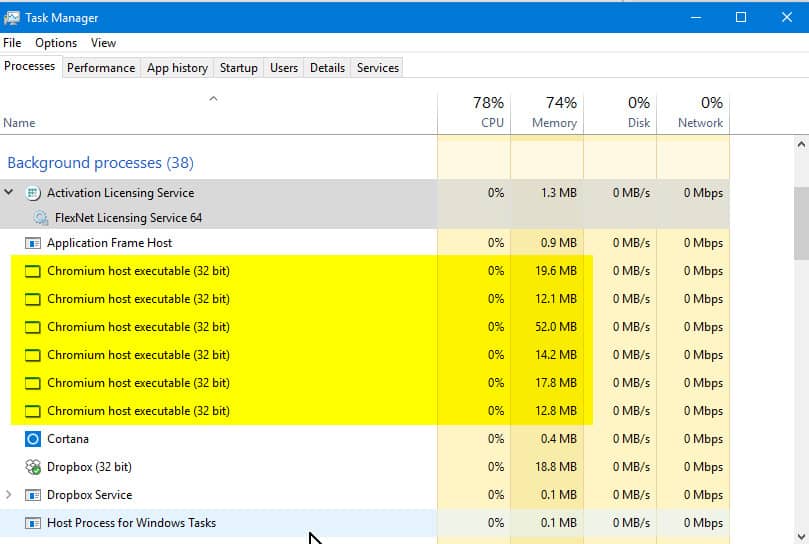
Usually, when your PC is running or having trouble performing basic operations, then it’s probably because a program or software is consuming a substantial amount of resources, causing high CPU usage than usual. If you open up Task Manager, you would notice that a program called Chromium Host executable is draining the high amount of resources on your PC, which is something very unusual.
Anúncios
What is Chromium Host Executable?
If you’ve noticed a program or process named Chromium Host Executable in your Task Manager, then you’re probably using the Autodesk’s animation and a graphics rendering software called Maya. Sometimes, you may also see a program named “AcWebBrowse.exe” in Task Manager, instead of Chromium Host Manager, although both of them are the same. To put it in simple terms, Chromium Host Executable is a part of Autodesk Browser Components, which aims to improve the performance of Autodesk products and deals with license management of the software.
“AcWebBrowser.exe” is actually a component of autodesk Maya software, which allows users to access online web pages within the software. Generally, these programs do not cause any trouble, and you wouldn’t come across such issues on your PC. However, if a third party software (mainly, antivirus or cleaner apps) installed on your PC is restricting the program from starting or running, then you’ll start facing performance issues due to high CPU usage.
Anúncios
What is Causing The Issue?
As stated earlier, if a third party application installed on your PC is interfering with the program or prohibiting the program from carrying out its operations, then you’ll most likely run into such problems. In these situations, you’ll definitely notice your slow performance and high CPU usage rate on your PC. In case, if you’re wondering if it’s safe to even allow the program to run on my PC.
Well, the program itself contains a digital signature from Verisign which is more than enough to assume that it’s completely safe and trustworthy. Also, there’s no problem with removing the program from your PC. In fact, it’s suggested to disable or completely remove the program it’s known to be causing any issues on your PC.
On various online forums, users have also mentioned that it’s common to face such issues with AcWebbrowser, especially if you’re running an obsolete or defective version of it. Make sure to update the application to the latest version whenever an update is available to avoid facing such issues.
How To Fix Chromium Host Executable Issue?
You may go ahead with the following methods in order to remove the Chromium Host executable program from your PC completely. However, we’d recommend you to first make sure that you’re using the latest version of the software. If you’re facing slow performance despite having the latest versions installed, then it’s time to disable the program to restore your PC back to the normal state.
Method 1: Disable The Program Manually
Manually terminating the program is probably the easiest and quickest way to reduce the CPU usage rate of your PC. You can follow the below-mentioned steps to manually disable the process using Task Manager.
- Go to your Start Menu and right-click on it to open up a list of various options on your Desktop.
- Select Task Manager from the list and wait for a few seconds for the window to appear.
- Navigate to the “Processes” tab in the Task Manager to proceed further.
- Find “Chromium Host Executable” from the list of programs shown on your screen.
- Right-click on the program and select the “End” program to terminate the process. That’s it!
Once the program is terminated from Task Manager, you should notice the CPU usage rate on your PC going down to normal and performance would be restored to its original state. In case, if this method doesn’t help, then you will have to proceed with the next method.
Method 2: Stop Autodesk Desktop Application
In most cases, certain apps start up on their own and carry out their operations without the involvement of the user. You may try disabling the Autodesk Desktop Application itself and see if the issue is fixed. Make sure to perform the following steps properly as mentioned.
- Go to your Window’s Start Menu and Open up the “Run” program to proceed.
- You can also hold the “Windows + R” key to directly open the “Run” program on your PC.
- Type “Services.msc” in the command field and hit “Enter” to proceed further in the process.
- Navigate to the “Autodesk Desktop Application” and open its properties by right-clicking on it.
- Go to the “Startup type” Tab in the properties window and select the option “Disabled”.
By selecting the “Disabled” option in the startup type, the system will prevent the program from opening on its own in the background. Once the program is disabled from opening in the background, you’ll no longer face high CPU usage and performance issues on your PC.
Method 3: Uninstall the AutoDesk Applications
If the above-mentioned methods do not seem to help, then the only way left is to uninstall the Autodesk products or software from your PC to get rid of the high CPU usage issue. Of course, you may reinstall them again whenever you want. You may proceed with the following steps to uninstall the Autodesk software from your PC.
- Open up Windows Start Menu on your Desktop by right-clicking on it.
- Select “Control Panel” and navigate to “Programs and Applications” tab on your PC.
- On the next screen, you will find a list of all the programs and apps installed on your PC.
- Select AutoDesk related applications and click on the “Uninstall” option to proceed further.
- Follow the on-screen instructions to uninstall the software from your PC.
Now open up Task Manager and check the CPU usage rate going down to the normal state. Once the issue is fixed and performance is restored to its original state, you may go ahead and install the Autodesk software again on your PC without any issue. This is probably the last resort in fixing the high CPU usage rate issue caused by Chromium Host executable program on your PC.
Final Words
Using the above-mentioned methods, you can fix the issues caused by the “AcWebBrowser.exe” or “Chromium Host Executable” program on your PC. I hope I’ve covered pretty much related to the “Chromium Host executable” issue. Make sure to let us know in the comments if the above methods work for you. In case the problem still exists, then it’s better to approach the online help of Autodesk for further instructions.