Anúncios
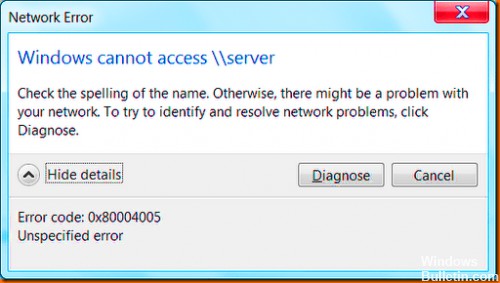
Many users encounter E_FAIL 0x80004005 error from MachineWrap, MediumWrap and other components when starting and in some cases before starting a virtual machine in VirtualBox, regardless of the operating system installed on it (Windows 10 and earlier, Linux and others).
This tutorial details the most common causes of error 0x80004005 in VirtualBox virtual machines and ways to fix the problem. Some of the readers may find the article VirtualBox virtual machines for beginners useful.
Anúncios
There are several reasons for the E_FAIL 0x80004005 error in VirtualBox, let’s start with some of the simplest ones that are very easy to fix:
Anúncios
Changing the path to the location with the virtual machine files due to changing the drive letter, renaming the folder containing the virtual machine files, renaming the user folder (if the virtual machine folders were inside it, as it usually is by default). In this case, when you start VirtualBox (assuming the VB manager was not started before renaming) you will see the “Inaccessible” mark next to the virtual machine name and, if selected, information about this error as shown in the image below. Possible solutions: return the original location of the virtual machine (the path will appear at the top along with the File not found message), or delete this virtual machine in the manager and import it from the new location (via the Machine – Add menu).
Deleting virtual disk files previously used in a virtual machine. Solution – go to the virtual machine configuration and remove the deleted virtual disk from the “Storage” section.
If you have connected a physical disk, flash drive or other drive to VirtualBox virtual machine (as in this case: How to connect a physical USB flash drive to VirtualBox virtual machine), you may get the same 0x error code if that physical drive is missing, or if you run VirtualBox administrator not as administrator, Solutions: reconnect the drive; remove the drive in virtual machine settings under “Media”; run VirtualBox as administrator.
Simple cases of occurrence of the error in question have been diagnosed above, but another variant is possible: a virtual machine is running as usual, with no recent changes made, and yet the error E_FAIL 0x80004005 appears. This is usually caused by problems with the .vbox, .vbox-tmp and .vbox-prev configuration files found in the folder with each VirtualBox virtual machine.
Let’s say our virtual machine is called Win10. So, the essence would be as follows: when we start a virtual machine session, VirtualBox renames the Win10.vbox file to Win10.vbox-prev and, at the same time, creates a Win10.vbox-tmp file in the same folder. The latter file will be used as the actual configuration file for this session, while .vbox-prev is saved as a backup. When the session ends, Win10.vbox-tmp is renamed to Win10.vbox. On the next boot, everything is repeated.
However, if for some reason the process is interrupted at one of the steps, the necessary .vbox file may not be created, causing an error the next time the virtual machine is started.
Fix the E_FAIL 0x80004005 error in such a case, perform the following steps:
Close VirtualBox manager completely, check the processes just in case VirtualBox.exe и VBoxSVC.exe in Task Manager (close them if they are running).
Go to the folder with your virtual machine. Standard path: C:|Virtualbox VMsVirtual_machine_name.
In case there is no file in the specified folder virtual_machine_name.vboxbut there are .vbox-tmp or .vbox-prev filesSave these files somewhere on your computer just in case.
Change .vbox-prev file extension to .vbox
Run the VirtualBox manager and check if the virtual machine starts now.
If that did not work, you can also try instead of .vbox-prev in a similar way, rename the file .vbox-tmp.
If the .vbox file was already present in the folder, you can try moving it to another location and then try steps 4-6.
Earlier versions of VirtualBox used .xml files instead of .vbox, but the essence of the solution remains the same for those as well.
As a last resort, if none of the above files are in the location, you can set up a new VirtualBox virtual machine and connect an existing virtual disk to it.
Other possible causes of the error
In case the above options did not help, below are other possible causes that can cause the same problem when running a virtual machine:
Sometimes it also works to fix the 0x80004005 error to start the virtual machine not from the VirtualBox manager, but, after closing it, by simply running the .vbox file from the virtual machine folder.