Anúncios
Python is a programming language that’s widely used by both beginners and professional developers. This brief guide is written because many people search hot to Update Python on MAC computers. So we will show you how to install Python 3 on a Mac OS X computer.
Before you jump in the manual, do take note that there are a number of ways to install Python 3 on a Mac but with this guide, I’ll show you the two easiest ways to do so. Personally, the way I did it was using a package manager like HomeBrew (it is okay if you do not know what it is). Again, I’ll show you how you can do this method down below. I will explain how to install the Python 3 upgrade on a Mac.
Anúncios
Some Mac programs require Python 2, and when updating they may start to malfunction or stop working. Therefore, we won’t update the version, but install Python 3 in parallel. Python 3 and Python 2 can coexist without conflicts on the Mac the commands will differ slightly. For it could be somewhat frustrating that Apple does not supply the latest version, typically used these days, when learning Python.
Update Python MAC
How to install Python 3 in macOS with Installer
The easiest way is to download the Python installer from the python.org website.
Anúncios
- Visit Python.org and download the latest available Python installer file;
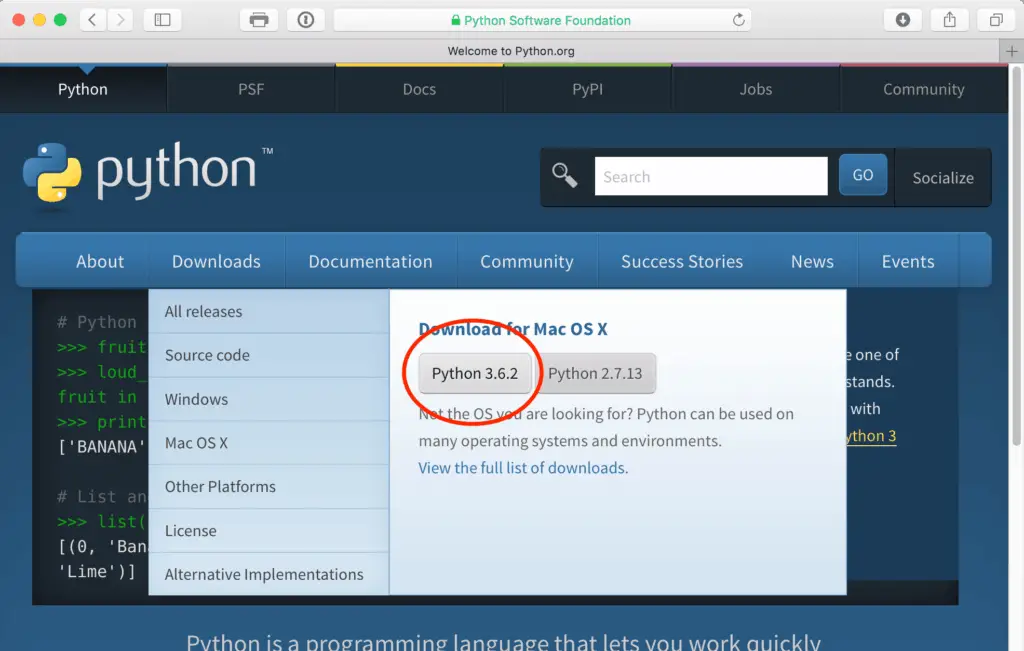
- Run the downloaded file and install Python 3.x on Mac.
- Python 3.6.x requires about 100MB of available disk space. The installation process is very fast;
- When Python 3 is installed, you will see the Python3 folder in /Applications on your Mac. You will also see IDLE in the /Applications.
The Python installation may require about 100MB of disk space to install. Once you’ve installed Python 3 you can have it alongside Python 2 without having to delete the latter from your Mac.
Next method will show you how to install Python 3.x on a Mac through Homebrew.
How to install Python 3 using Homebrew
Installing an updated version of Python 3 through Homebrew is extremely simple. Of course, Homebrew should be installed on your computer, however, if you are interested in this method, then you probably have already used the program more than once.
First of all, you’ll need to have this thing called HomeBrew installed on your Mac. Homebrew is basically a “package manager”. A package manager is an application that helps you install the stuff you need that Apple (or even your Linux System) hadn’t installed in the first place for you.
It’s simple, fast and safe.
Second, you will need to have installed XCode onto your Mac. If you’re thinking of learning how to program or creating iOS apps on your Mac, then it’s good to have XCode installed. We will be using XCode to install HomeBrew application.
Note
If you have already installed XCode onto your Mac you can skip step 1 and jump straight to step 3.
Here are the steps to install XCode, HomeBrew as well as install Python 3 using HomeBrew onto your Mac:
- Jump into your Terminal app on your Mac and run the copy/paste the following command into the Terminal to install XCode onto your Mac:
$ xcode-select --install - Simply click through all the confirmation crap that XCode shows. It may take a little while to install XCode since it is a large program.
- Great! Now that you have XCode installed, you can install HomeBrew! To install HomeBrew, simply copy/paste the following command into your Terminal:
/usr/bin/ruby -e "$(curl -fsSL https://raw.githubusercontent.com/Homebrew/install/master/install)"
Note
You can confirm the HomeBrew installed correctly by running the command: below:
$ brew doctor
Your system is ready to brew.
- You’ve installed HomeBrew! Now let’s install the Python 3, the reason why you’re here. To install the latest version of Python, just copy/paste the following command into your Terminal:
$ brew install python3
Note
You can confirm which version of Python was installed all by running the command below (the exact same command you tried earlier in this guide). It should show up as follows:
$ python3 --version
Python 3.7.0
- Finally, let’s run our new Python 3. Simply enter
python3.
How to Find out the Installed Version of Python
Open the Terminal program and use the following command:
python --version
In most cases, Python 2.7.x will be installed on macOS: either 2.7.4 or 2.7.10.
If you installed the Python update, you can check the version with the following command:
python3 --version
Once again, both versions of Python can coexist without conflicts.
Note: Once again, I want to remind you that you do not need to upgrade Python 2.x to Python 3.x, because this can lead to program malfunctions. Just install the updated version in parallel.