Anúncios
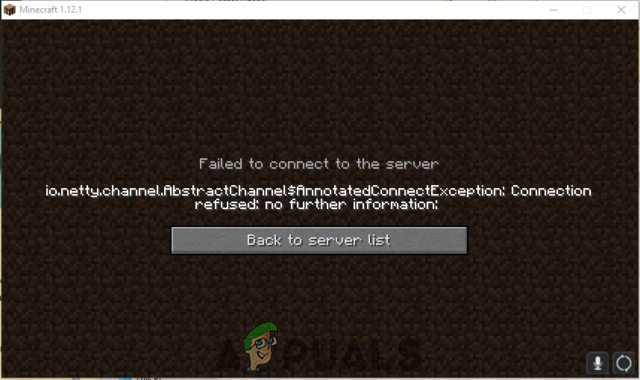
Minecraft is a video game made by Markus Persson. Minecraft is a sandbox video game released in 2011, which is still quite common today. It’s thought to be the single best selling game of all time with over 176 million copies sold. Estimates place there are approximately 112 million active monthly gamers. Even though this is a good game, there are cases when certain issues can happen. This error isn’t confined to one server and continues across all of these.
What Causes the io.netty.channel.AbstractChannel$AnnotatedConnectException:Connection refused: no further information Error?
After receiving numerous reports from several users we investigated the problem and devised a set of solutions which solved the issue for a lot of the users. We’ll explore some of the key reasons behind Connection refused: no additional information error. These are given as below: Also, we looked into the reasons due to which the error is triggered and listed them below.
Anúncios
- IP issue: Using the wrong IP address and port for connecting to a server can create trouble. The IP address and correct port forward our connection to the server. After the server’s approval, the link establishes. In the case of Static IP addresses, the IP address remains the same.But if it is not used, then ISP changes IP address from time to time. ISP may allocate the same IP address to different machines. So, in this case, the problem in the Minecraft game appears. That is why it is necessary to edit IP addresses from time to time.
- Firewall: Also it is possible that the Windows Firewall that you are using might be blocking your connection to the server. Both the Java files and the game directory is to be added to the exclusion list of Windows Firewall in order for the game to connect to the server properly.
- Outdated Java: We know that the Minecraft game requires Java software. Sometimes the software present in your system is not updated. If the game launcher is updated, but Java is not, then the problem may occur. So always install an updated version of Java on your computer.
- Incompatible Software: There is a list of software that is not compatible with Minecraft and cause issues if they are installed on the computer on which you are trying to connect to the server. Minecraft has an official list of software which is not compatible with the game and causes conflicts.
Now that you have a basic understanding of the nature of the issue we will move on towards the solutions. It is recommended that you try these solutions in the specific order in which they are provided to ensure that no conflicts occur.
Also read: iPhone won’t turn on or Charge?
Anúncios
Solutions for io.netty.channel.AbstractChannel$AnnotatedConnectException:Connection refused: no further information Error
Basic knowledge of the problem helps in finding solutions. Here we will discuss some methods for removing Connection refused: no further information error.
Solution 1: Resetting Internet
The first thing you will have to do in this case is to turn off the router. Wait for a minute before turning it back on. While you are waiting, make sure that the ethernet cord is plugged in securely on both ends of your computer and the router ( this will only apply if you are using a wired connection).
Make sure that your computer can go online then run Minecraft.
Check if the io.netty.channel.AbstractChannel$AnnotatedConnectException error issue still occurs.
Also read: How To Download JW Player Videos?
Solution 2: Adding Exception in Firewall
A firewall works by filtering data coming from the world wide web. There’s a possibility your computer firewall is blocking the connection to the Minecraft server. To fix this you’ll have to bring the game to the exception list of the firewall.
Step 1: Click on the Start menu and select Settings.
Step 2: Select Updates & Security option.
Step 3: From the left pane, select the Windows Security option. After that, select the Firewall & Network protection option.
Step 4: Now, select Allow an App through the Firewall option.
Step 5: In the next step, click on the Change Settings option. A warning prompt appears. Select Yes option here (If not then don’t worry).
Step 6: From a list of options, choose to Allow another app. Then click on Browse.
Step 7: From the game installation directory, select the game and executable launcher files.
Step 8: Repeat the same process. Navigate to the directory where the Minecraft server is present.
Step 9: Open Maxell folder and then MinecraftServer folder.
Step 10: Allow Java executables in the same way as we did earlier.
Step 11: Repeat the same process. Allow all the Java Platform SE Binary options through public as well as private networks.
Step 12: After performing these steps, open Minecraft launcher. Now try to connect to the server.
If the problem is due to a firewall, then it resolves after applying these steps.
Also read: How to Fix ERR_CACHE_MISS In Google Chrome
Solution 3: Adding the IP address and port
In case the IP address is not static. If you have dynamic internet connection ( IP always changes) then the match may not be able to create a connection to your server. Here’s the way to repair this is what is causing the issue.
Step 1: Right-click on the Command Prompt icon and select Run As Administrator option.
Step 2: Type ipconfig and press Enter. Note down the IPV4 Address. For security reasons our IPV4 is hidden.
Step 3: Navigate to the Minecraft Servers Folder → Maxwell → MinecraftServer. There is a text document named Server Properties. Open this document.
Step 4: Server Port is listed here. It is usually a number. Note it down.
Step 5: After that, open up Minecraft and go through the Play Multiplayer option.
Step 6: Choose the server with which you want to join. Then click on the Edit option.
Step 7: Fill the Server Name according to your preference. Fill the IP Address that we have noted down in Step 2. Fill the server port, as noted down in Step 4.
Step 8: Click on the Done and Refresh button. Again connect to the server. Now check for the problem.
I hope these few small tips will help you to play Minecraft and avoid these annoying errors. Please share your ideas in the comment section below.