Windows: Software Reporter Tool Causing High CPU Usage - Adcod.com

Windows: Software Reporter Tool Causing High CPU Usage

Anúncios

Is the CPU usage of Windows going up after a long time of not using the system or after installing updates? That may be due to the Google Chrome Software Reporter Tool. Here is some information.  First of all: I can not test very much at the moment, because I am sitting in the digital no-man’s-land for a few hours with a shaky internet connection and a small netbook. But I have a few minutes to write an observation. It may be that I am wrong. At least it would be an idea for other sufferers to take a look.

Why is?

After unmasking Meltdown and Specter attack methods on CPUs, Microsoft began frantically rolling out emergency updates in January 2018 and also preferred patchday updates a week earlier (see, for example, Critical Security Updates for Windows 7 / 8.1 / Server (3./4.1. 2018) ). At the same time it was announced that the meltdown patches will cause line losses.

Anúncios

In the comments here in the blog information is found that the systems are much slower or there was collateral damage. Currently I am sitting on a Medion Akoya 1210 netbook (already a few years old) with Windows 7. When I started this morning, the CPU utilization was 100 percent for minutes, and there was hardly anything to use.

Inspection in Task Manager

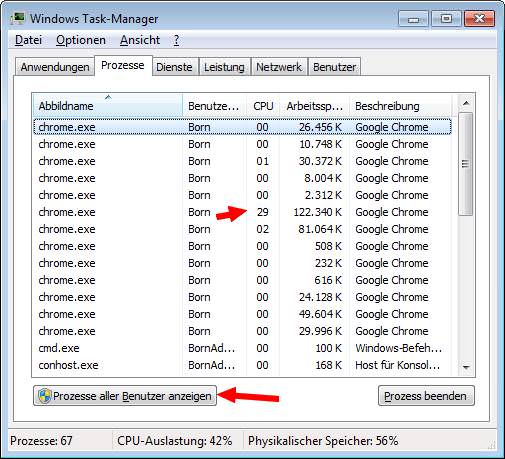
So I started looking for which processes generate the load. Short called the Task Manager under Windows 7. But there was not much to see – some Chrome processes for open browser tabs dropped some performance (30%), but nothing that would explain the 100%.

Anúncios
So I decided to look at the processes of all users. Click the Show Processes of All Users button and confirm User Account Control.
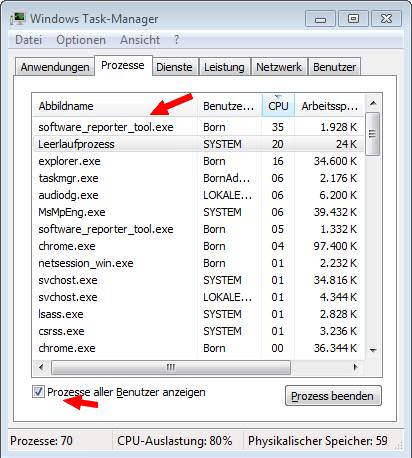
 

In the screenshot above can be seen, then the Show processes of all users check box is selected. If you then click on the column header CPU of the Processes tab, all processes are listed according to their CPU performance.

There I noticed that three times a process software_reporter_tool.exe occurred. And one of these processes permanently consumed up to 36% power.

In the above screenshot, which I made only later, there are only two processes. And right now, after starting software_reporter_tool.exe , the system also runs well, because the CPU performance of the task immediately drops and the process terminates.

Ad hoc I did not know what this process belongs to. So right click on the entry for the line and the context menu command Open file path selected. And it was already clear what the process belongs to.
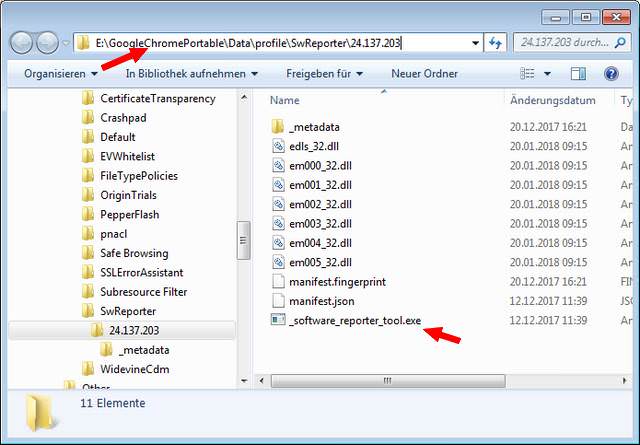
The folder with the Software Reporter Tool belongs to Google Chrome, which I run as a portable version on my system. So in the Windows Task Manager I let the process structure of an instance of software_reporter_tool.exe be terminated via context menu. Thereupon all three process entries disappeared from the task manager and the CPU utilization dropped to 11%.

The Software Reporter Tool is a Google Chrome program that scans the device. The scan is usually started once a week and takes about 20 minutes. This executable is designed to help find programs that may not work well with Chrome, and then remove them. In addition, the application reports these scans to Chrome. This allows the browser to prompt the user to remove the unwanted applications through the Chrome Cleanup Tool.

With this knowledge, the performance degradation can be explained. The netbook is often switched off for weeks. And I’m probably not the only one who noticed the CPU load. But the above guide can be used by any user plagued by performance degradation to see where the CPU’s performance is being retrieved.

I’ve renamed the file software_reporter_tool.exe in the folder to prevent the call. You can probably delete the file, but should note that the part comes back with every Chrome update.


You may also like:

User reviewing processes in Task Manager

How to Configure Power Profile in Windows for Better Performance

Anúncios In an age where every millisecond counts and every watt of power could mean a smoother experience, optimizing your power profile in Windows 11 (or Windows 10) is a critical step for professionals, gamers, creators and productivity-seekers alike. With over twenty years writing about technology, I’ve seen how correctly configuring power settings can unlock…
Windows PC performing cleanup of temporary files and uninstalling unused programs

How to Accelerate the Boot of Windows 10/11

Anúncios If you are reading this on adcod.com, you already understand that in the fast-moving world of technology every second counts. When your system is sluggish at boot, it sets the tone for the rest of your computing session. As a copywriter with over 20 years in the tech niche, I’ll walk you through actionable…
Illustration showing a Windows computer screen and question about disk defragmentation.

How to Defragment Disk in Windows: Myths and Truths

Anúncios If you are reading this on adcod.com, you already care about keeping your PC performance sharp. Over my 20 + years in technology copywriting, I’ve seen countless articles about disk defragmentation — some accurate, some misleading. In this post I will walk you through what disk defragmentation means on Windows, show you how to…
Secure VPN connection

How to Install & Configure VPN on Any Device

Anúncios A VPN not only protects your personal data from cyber threats but also gives you the freedom to browse the internet without borders. From accessing streaming content restricted to certain regions to safeguarding your connection when using public Wi-Fi, the benefits go far beyond privacy alone. By understanding how to properly install and configure…

How to Reset an Administrator Password Using CMD on Windows 11

Anúncios Let’s get straight to it: how to reset an administrator password using CMD on Windows 11 is the right search—and the right solution—because Windows won’t show the old password in plain text for security reasons. The safest, supported way is to reset a local admin password with Command Prompt from an elevated session or…

How to Show Administrator Password Using CMD

Anúncios In the realm of Windows 10 or Windows 11, the administrator password holds the key to unlocking a realm of possibilities, allowing users to access elevated privileges and take full control of their systems. One of the most potent tools at your disposal for revealing this coveted password is the Command Prompt. In this…
Chrome-error://chromewebdata/

Fix Chrome-error://chromewebdata/ on PC

Anúncios If you’re a Chrome user and have encountered the frustrating Chrome-error://chromewebdata/ error while visiting certain URLs, don’t worry – you’re not alone. This error can manifest for various reasons, including corrupted cache data, outdated browser versions, problematic extensions, or corrupted browser settings. Additionally, you might see the error message NET::ERR_CERT_COMMON_NAME_INVALID displayed. Fortunately, you’ve arrived…
software to control fan speed

How to Control Fan Speed on Windows 10

Anúncios In the world of computing, every laptop and PC comes equipped with internal fans. Whether you’re using a high-end gaming rig or a regular laptop, these fans play a critical role in maintaining your system’s temperature within safe limits. They automatically adjust their speed based on various factors, ensuring your hardware remains cool and…

How To Fix 0x80070002 Error On Windows: A Comprehensive Troubleshooting Guide

Anúncios If you’re a Windows user, you might have encountered the perplexing “0x80070002” error at some point. This error code can emerge in various scenarios, from Windows updates to file operations, leaving you scratching your head. But worry not! In this comprehensive guide, we’re not just going to help you fix this error, but we’ll…

How to Fix 0xc00007b/0xc000007b Error on Windows: A Comprehensive Guide

Anúncios If you’re an avid gamer or enthusiastic software user, you’ve probably encountered the infamous “0xc00007b/0xc000007b” error on your Windows system. This vexing error often rears its head when you excitedly launch a game or a software application, only to be met with disappointment. But fret not! In this comprehensive guide, we’re not just going…